|
Size: 872
Comment:
|
Size: 2181
Comment:
|
| Deletions are marked like this. | Additions are marked like this. |
| Line 6: | Line 6: |
| Different versions of CentOS to run in WSL can be found in the Microsoft (App) Store. As of this writing the images are not free but are inexpensive at a one time cost of $2 to $5 USD. The example install here will show CentOS7 but the same process should apply to getting other versions of CentOS to run Under WSL (here with the 6.9.x.x) Xming server). | Different versions of CentOS to run in WSL can be found in the Microsoft Store. As of this writing the images are not free but are inexpensive at a one time cost of $2 to $5 USD. The example install here will show CentOS7 but the same process should apply to run other versions of CentOS under WSL (this example is with the free 6.9.x.x Xming server). |
| Line 8: | Line 8: |
| [[attachment:MS_store_1_cos7.png]] | {{attachment:MS_store_1_cos7.png}} |
| Line 10: | Line 10: |
| [[attachment:MS_store_2_cos7.png]] | {{attachment:MS_store_2_cos7.png}} |
| Line 12: | Line 12: |
| If an image is free - or after you purchase an image - you will see an ***install*** button is available. Clicking on install will cause the image to be installed in WSL. In the case of this CentOS image, the epel repo will be added, and some additional packages will be installed. Once this image is installed, you will be prompted, e.g., to pick a userid and password. | If an image is free - or after you purchase an image - you should see a ***launch*** button in the item description. {{attachment:MS_store_3_cos7.png}} With WSL (previously) enabled, clicking on launch will cause WSL to bring up a terminal window and print out a notification that installation is underway. You will then be prompted to create a userid. Note that userid and password need not match your Windows credentials. {{attachment:WSL_cos7_install_1.png}} Subsequently, this image will install the epel repo followed by some additional packages. Answer yes to the prompt when asked to install packages. {{attachment:WSL_cos7_install_2.png}} {{attachment:WSL_cos7_install_1_5.png}} {{attachment:WSL_cos7_install_3.png}} After the install commands are done, you will be prompted to create a password for the userid. {{attachment:WSL_cos7_install_4.png}} You will then be at the terminal prompt once the password is accepted. == CentOS 7 Freesurfer WSL Install == Next install the freesurfer release 7 RPM in the WSL environment. In this example, the latest (7.1.0) release CentOS RPM has been downloaded into the users Downloads folder on the Windows side and will be read directly thru the NTFS mount point from the WSL terminal. The link to the CentOS7 rpm is [[https://surfer.nmr.mgh.harvard.edu/pub/dist/freesurfer/7.1.0/freesurfer-CentOS7-7.1.0-1.x86_64.rpm|CentOS7_RPM]] Substitute your userid for the empty subdirectory in the path to the RPM file. Answer yes to the prompt when asked to install packages. {{attachment:WSL_FS_install_1.png}} {{attachment:WSL_FS_install_2.png}} {{attachment:WSL_FS_install_3.png}} |
CentOS 7 WSL Install
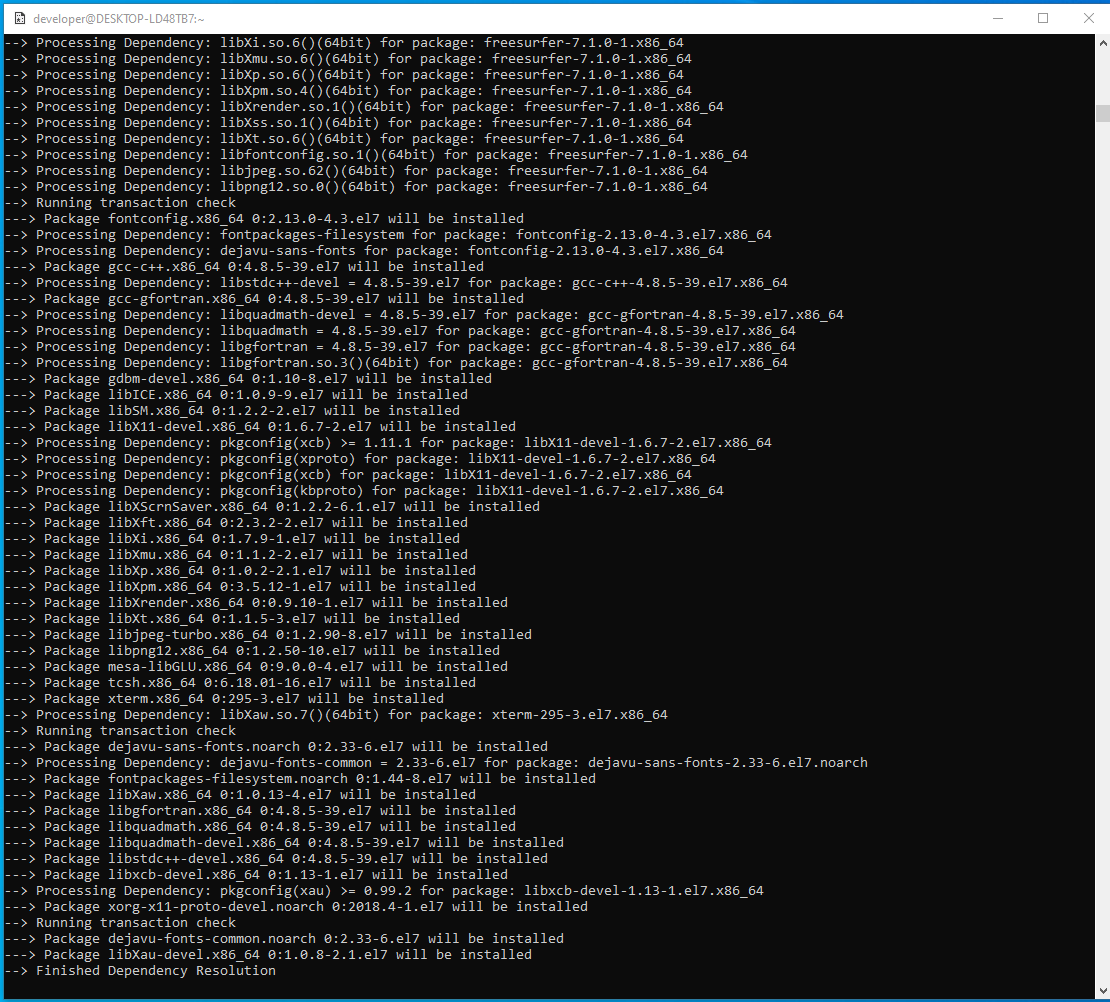
Different versions of CentOS to run in WSL can be found in the Microsoft Store. As of this writing the images are not free but are inexpensive at a one time cost of $2 to $5 USD. The example install here will show CentOS7 but the same process should apply to run other versions of CentOS under WSL (this example is with the free 6.9.x.x Xming server).
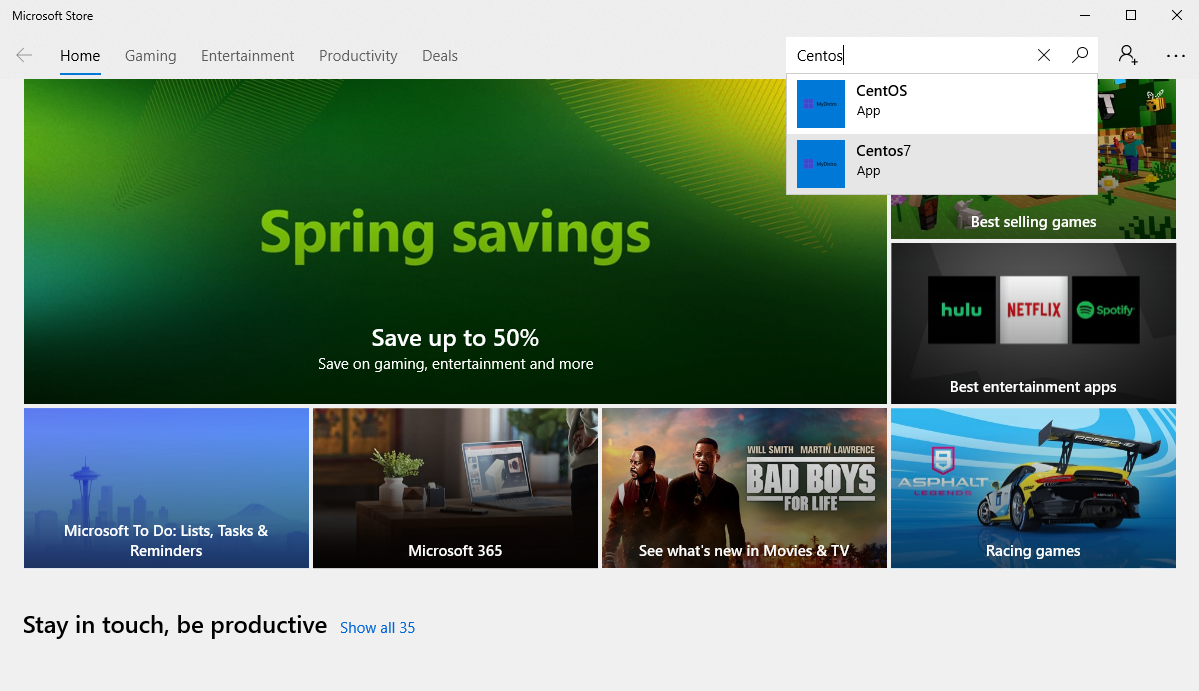
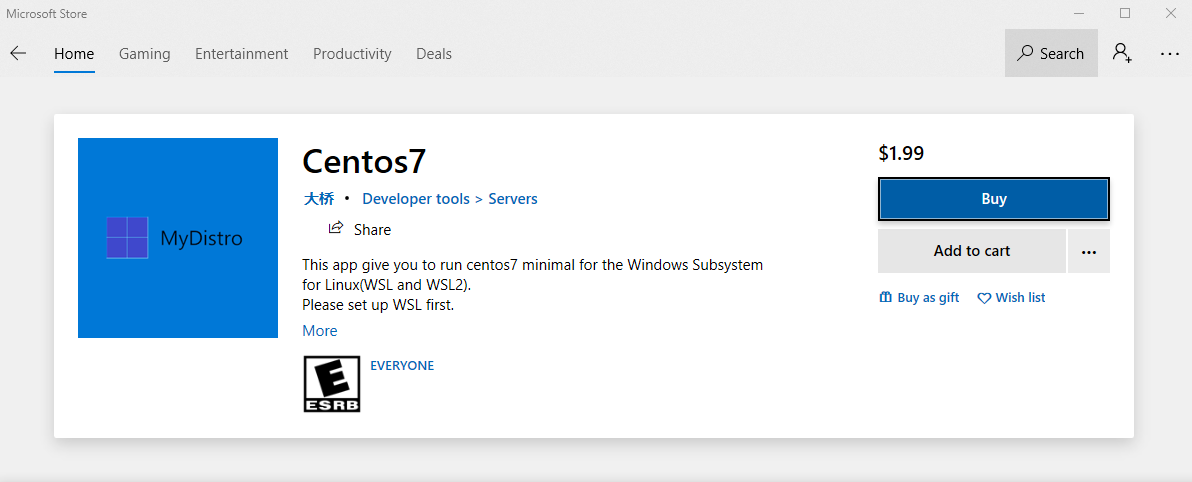
If an image is free - or after you purchase an image - you should see a ***launch*** button in the item description.

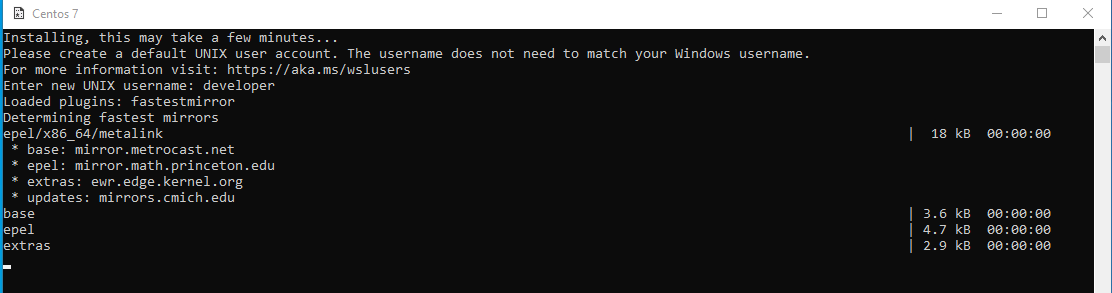
With WSL (previously) enabled, clicking on launch will cause WSL to bring up a terminal window and print out a notification that installation is underway. You will then be prompted to create a userid. Note that userid and password need not match your Windows credentials.

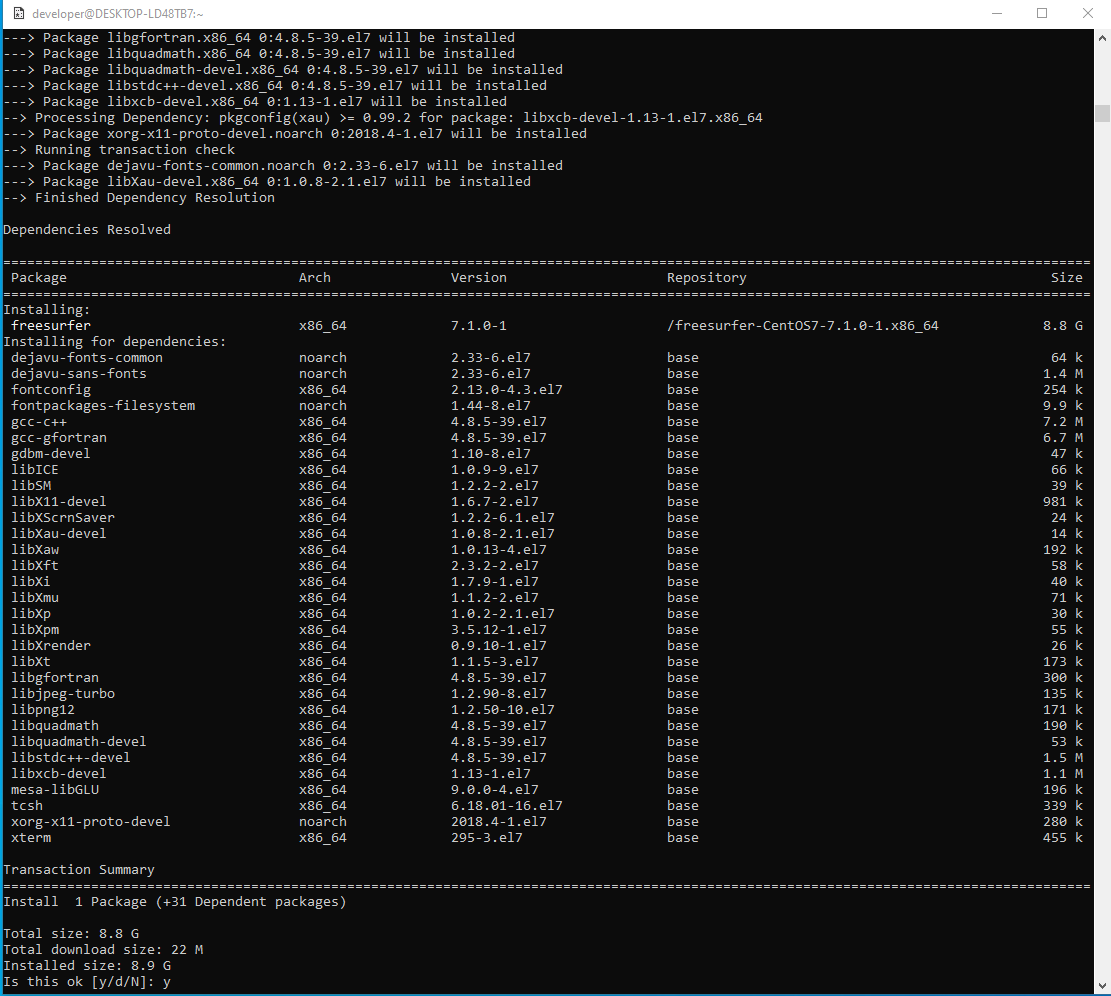
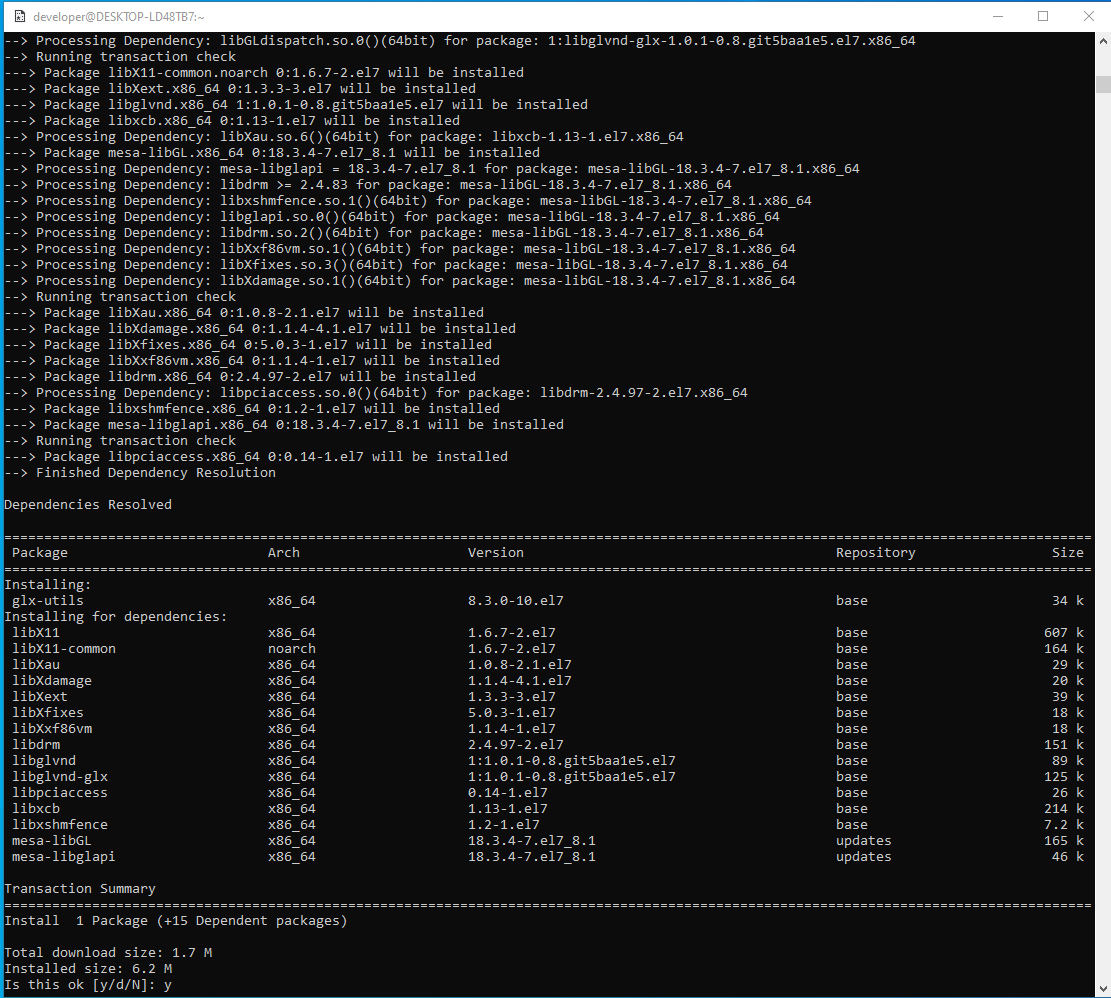
Subsequently, this image will install the epel repo followed by some additional packages. Answer yes to the prompt when asked to install packages.
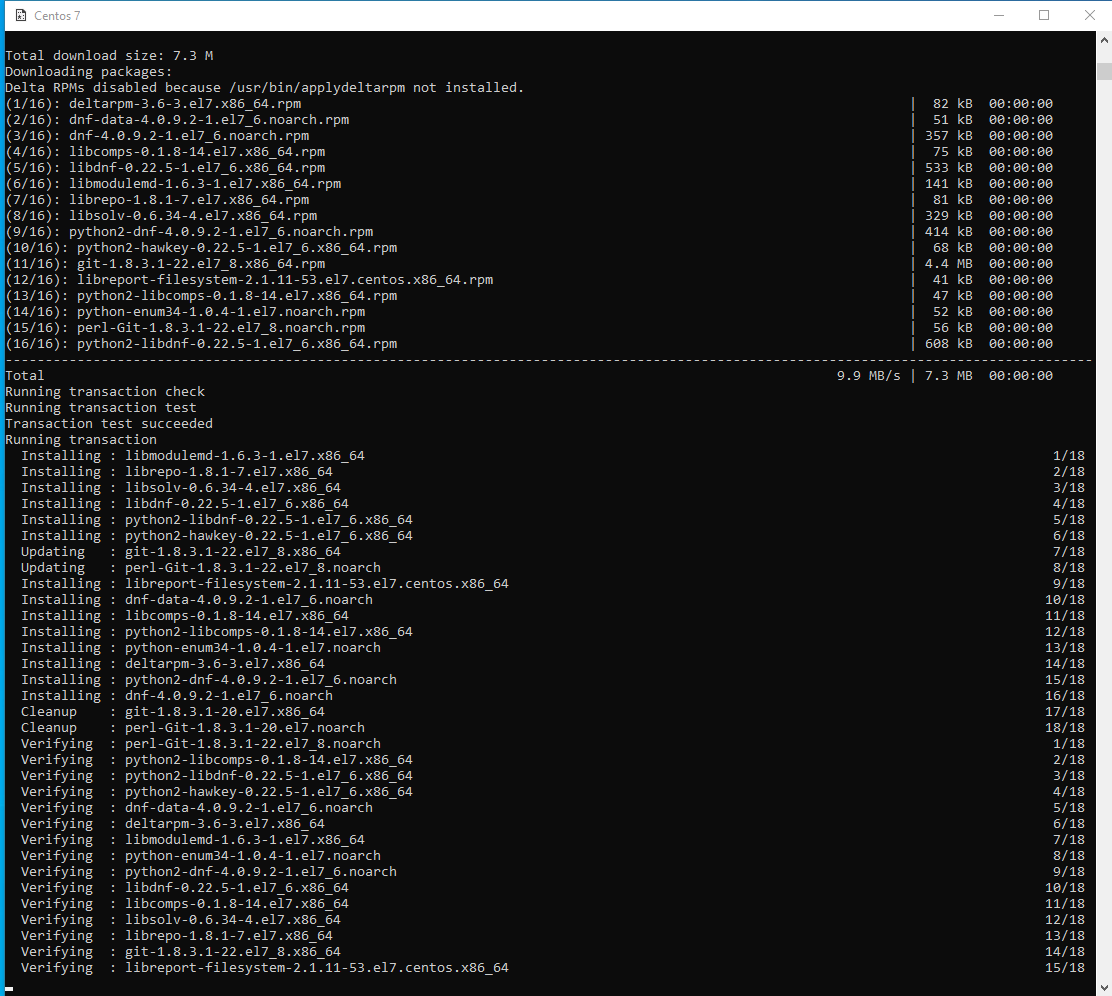
After the install commands are done, you will be prompted to create a password for the userid.
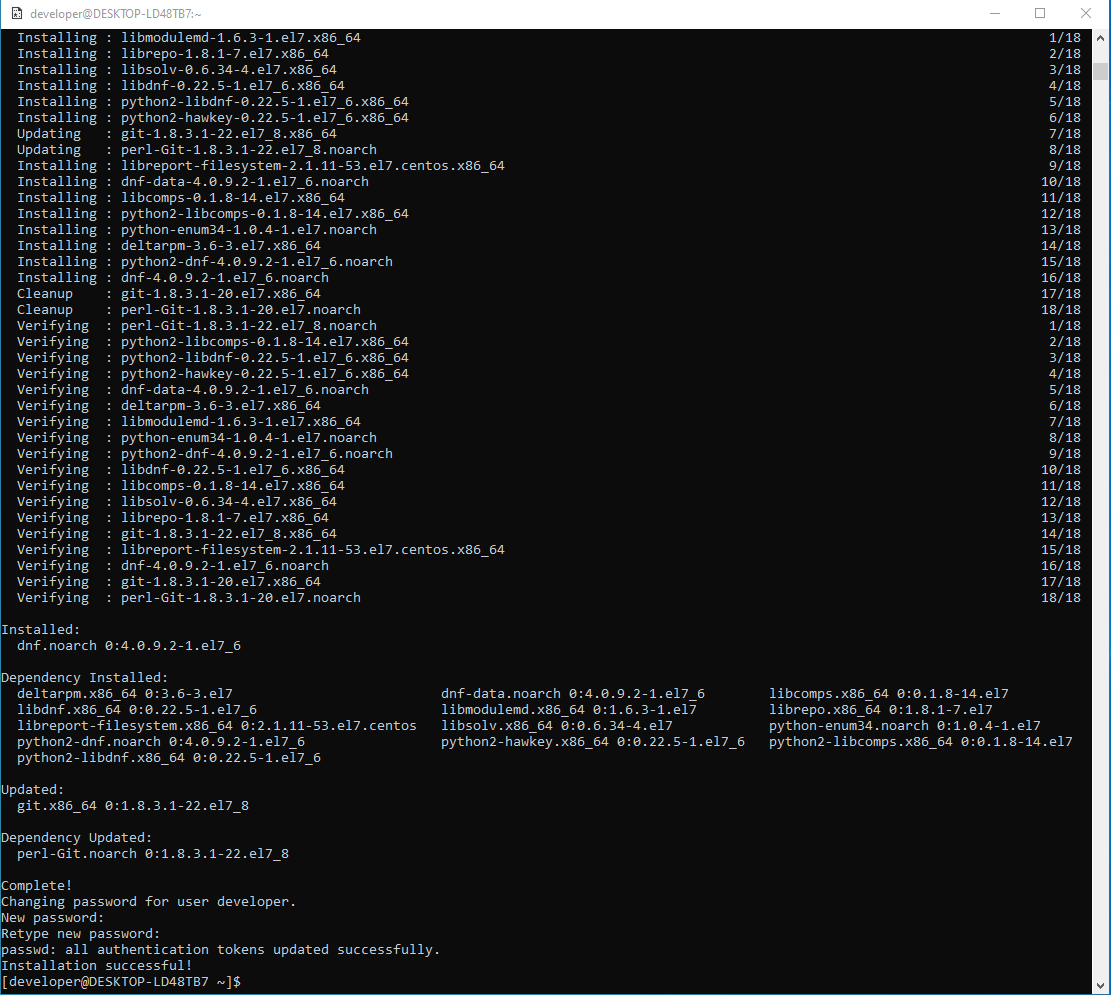
You will then be at the terminal prompt once the password is accepted.
CentOS 7 Freesurfer WSL Install
Next install the freesurfer release 7 RPM in the WSL environment.
In this example, the latest (7.1.0) release CentOS RPM has been downloaded into the users Downloads folder on the Windows side and will be read directly thru the NTFS mount point from the WSL terminal. The link to the CentOS7 rpm is CentOS7_RPM
Substitute your userid for the empty subdirectory in the path to the RPM file.
Answer yes to the prompt when asked to install packages.