
|
Size: 3526
Comment:
|
← Revision 12 as of 2017-10-31 16:38:13 ⇥
Size: 1991
Comment:
|
| Deletions are marked like this. | Additions are marked like this. |
| Line 1: | Line 1: |
| ||Up to FreeviewGuide ||Back to [[FreeviewGuide/FreeviewTools/ReconEdit|ReconEdit]] ||Continue to [[FreeviewGuide/FreeviewTools/PointSetEdit|PointSetEdit]] || |
|
| Line 4: | Line 6: |
| Voxel edit mode is located just above the layer list and underneath the menu bar, or can be found under Action -> Voxel Edit in the menu bar. Alternatively, you can use the shortcut key Alt+E. | ROI edit mode is located just above the layer list and underneath the menu bar, or can be found under Action -> ROI Edit in the menu bar. This option will only be available after either opening an existing ROI or creating a new ROI. |
| Line 8: | Line 10: |
| Selecting Voxel Edit mode will prompt the Voxel Edit pop-up window to appear, which will include the following button bar: | Selecting ROI Edit mode will prompt the ROI Edit pop-up window to appear, which will include the following button bar: |
| Line 16: | Line 18: |
The freehand voxel edit tool allows you to erase and add voxels of a specified value. For instance, this tool allows you to add voxels of a specified value corresponding to those in the FreeSurfer Lookup table (LUT). This is probably the most common voxel edit tool which you will use. Clicking on the Freehand tool button in the Voxel Edit pop-up window toolbar displays several options. Several relevant keyboard shortcuts are listed at the bottom of the Voxel Edit pop-up window as well. Below is a snapshot of the default Freehand tools options. {{attachment:FreehandOptions.jpg}} |
The freehand voxel edit tool allows you to erase and add voxels of a specified value. To begin drawing an ROI, simply left click and drag the mouse to draw in the ROI. |
| Line 26: | Line 24: |
| '''Recon editing''': Checking this box will change and lock the Brush value to 255, and the Eraser value to 1. It will also enable the voxel draw range limits, with Low set to 5 and high set to 250. This is useful for when making typical edits to Freesurfer recons, where any voxels added to the white matter mask (wm.mgz) should have a value of 255, and any erased voxels from the white matter mask or brainmask volumes should set to 1 so that Freesurfer can identify manual edits. The draw range limits prevent drawing over existing voxels in the white matter mask which have certain values which are useful to Freesurfer and for troubleshooting. '''''*** For extended editing involving the correction of surface topology and segmentation errors, we strongly suggest you use the Recon Edit mode instead ***''''' '''Brush value''': Sets value of newly drawn voxels. '''Eraser value''': Sets value of erased voxels (typically 0 or 1). '''Reference''': Description N/A '''Constrain drawings to...''': Description N/A '''Only draw on...''': Designates the lowest and highest possible values of existing voxels which can be drawn over. Only voxels ''inside'' low and high settings can be edited. '''Do not draw...''': Designates the lowest and highest possible values of existing voxels which can not be drawn over regardless of brush value setting. Only voxels ''outside'' low and high settings can be edited. '''Flood fill multiple...''': Flood Fill operation will edit not only voxels visibile in the current slice, but also any connected voxels in the two other dimensions which meet the current fill criteria settings. Note: You can use the Flood Fill tool while using the Freehand tool by holding down the crtl key and left-clicking. To change the Flood Fill options you will have to switch to using the Flood Fill tool. |
|
| Line 47: | Line 27: |
| The polyline tool can be used to draw straight lines for an ROI by left clicking different points on the subject. In addition, to connect the ROI, just right click and the lines will be connected. Also, right click to stop drawing with the polyline tool. | |
| Line 53: | Line 33: |
| The livewire tool is used in a similar way to the polyline tool, however the livewire tool 'hugs' continuous boundaries. In order to stop drawing with the livewire tool, right click. | |
| Line 58: | Line 38: |
The fill tool can be used to fill in an enclosed region drawn with the freehand, polyline, or livewire tools. |
Up to FreeviewGuide |
Back to ReconEdit |
Continue to PointSetEdit |
ROI Edit
The ROI Edit mode in Freeview contains tools to add, remove, or modify existing or new ROIs.
ROI edit mode is located just above the layer list and underneath the menu bar, or can be found under Action -> ROI Edit in the menu bar. This option will only be available after either opening an existing ROI or creating a new ROI.

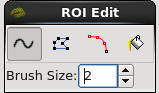
Selecting ROI Edit mode will prompt the ROI Edit pop-up window to appear, which will include the following button bar:
|
Freehand voxel draw |

The freehand voxel edit tool allows you to erase and add voxels of a specified value. To begin drawing an ROI, simply left click and drag the mouse to draw in the ROI.
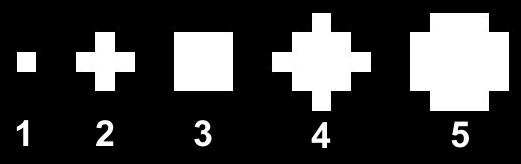
Brush size: Determines the size of the uniform brush stroke and the number of voxels which can be drawn/erased simultaneously. Examples of the first 5 brush sizes. Note the number of voxels each brush size covers.
|
PolyLine voxel draw |

The polyline tool can be used to draw straight lines for an ROI by left clicking different points on the subject. In addition, to connect the ROI, just right click and the lines will be connected. Also, right click to stop drawing with the polyline tool.
|
Livewire voxel draw |

The livewire tool is used in a similar way to the polyline tool, however the livewire tool 'hugs' continuous boundaries. In order to stop drawing with the livewire tool, right click.
|
Flood fill voxel draw |

The fill tool can be used to fill in an enclosed region drawn with the freehand, polyline, or livewire tools.