|
Size: 2464
Comment:
|
← Revision 37 as of 2013-11-01 14:28:26 ⇥
Size: 4101
Comment:
|
| Deletions are marked like this. | Additions are marked like this. |
| Line 1: | Line 1: |
| [wiki:Self:FsTutorial top] | [wiki:Self:FsTutorial/MorphAndRecon previous] | ## page was renamed from FsTutorial/ControlPoints [[FsTutorial|top]] | [[FsTutorial/TroubleshootingData|previous]] = Using Control Points to Fix Intensity Normalization = *To follow this exercise exactly be sure you've downloaded the [[FsTutorial/Data|tutorial data set]] before you begin. If you choose not to download the data set you can follow these instructions on your own data, but you will have to substitute your own specific paths and subject names. |
| Line 3: | Line 6: |
| == Using Control Points to Fix Intensity Normalization == Sometimes the intensity normalization step will fail because it cannot determine the proper intensity for white matter. The result is an erroneous white matter segmentation. A control point is a manually selected location in the volume that the user feels sure is inside the white matter boundary. |
Sometimes the intensity normalization step will fail because it cannot determine the proper intensity for white matter. The result is an erroneous white matter segmentation. A control point is a manually selected location in the volume that the user feels sure is inside the white matter boundary, and subsequently should be normalized to an intensity of 110. TkMedit displays the intensity of any voxel your cursor is on as a "value" in the Cursor and Mouse sections of its Tools interface. |
| Line 9: | Line 10: |
| Go into the buckner_data/tutorial_subjs directory, set your SUBJECTS_DIR environment variable to the current directory (if not already set), and open the 111_control_points_before brain volume with tkmedit: | Subject cp_before is an example of a subject that needs some control points in order to ensure that the voxels are normalized correctly and then included in the wm.mgz volume. This page will walk you through setting control points to fix this type of problem. |
| Line 11: | Line 12: |
| First, make sure you have cp_before loaded into tkmedit: ---- |
|
| Line 12: | Line 15: |
| cd $FREESURFER_HOME/subjects/buckner_data/tutorial_subjs setenv SUBJECTS_DIR ${PWD} tkmedit 111_control_points_before brain.mgz & |
tkmedit cp_before brainmask.mgz -aux T1.mgz -surfs }}} ---- '''Note:''' If you are using your own subject data, where surfaces are not yet available (ie. the -autorecon2 stage has not run yet), then don't include the surfaces in the tkmedit command: {{{ tkmedit <my_subj> brainmask.mgz -aux T1.mgz |
| Line 17: | Line 23: |
| With your subject loaded in tkmedit, enable editing of control points by selecting '''Tools -> Edit Ctrl Pts'''. Middle-clicking will create a control point; right-clicking will delete a control point. As you select control points, they will appear as small green crosshairs. Select a few control points around your trouble areas, space them out throughout the brain and on different slices. You want to pick points in a region where the wm intensity is lower than it should be (that is, less than 110). In general, control points can help recover thin wm strands that are dark by putting some at the base of the strand. If you have a region that has a very bright intensity you want to be sure to pick control points in that region. Note that control points will only have an effect if you put them at points that are not equal to 110 in the T1 volume. | |
| Line 19: | Line 24: |
| After creating control points, go to '''File -> Save Control Points'''; this will create a file called <subject name>/tmp/control.dat. | Scroll through this subject and find the location where the white matter is being excluded from the surface. In subject cp_before, this happens around coronal slice 148. |
| Line 21: | Line 26: |
| '''Re-running the Intensity Normalization''' | {{attachment:cp_before.jpg}} |
| Line 23: | Line 28: |
| Once the control points are saved in a .dat file, they can be loaded in as an argument to recon-all. To re-run the first stage of recon-all with control points, use the -usecontrolpoints flag: | To add control points you will first need to select the Edit Control Points tool {{attachment:icon_control_points.gif}}. Middle-mouse-button clicking will create a control point; right-button clicking will delete a control point. As you select control points, they will appear as small green crosshairs. Select a few control points around your trouble areas, space them out throughout the brain and on different slices. You want to pick points in a region where the wm intensity is lower than it should be (that is, having a voxel value less than 110). |
| Line 25: | Line 30: |
| '''General tips for adding control points:''' *Control points should only be added in regions that are definitely white matter (i.e., not in the cortex, cerebellum, brainstem, or outside of the skull). *Control points should also only be added in regions where voxel intensity is not 110. A control point in a region that is already normalized to 110 will be useless. *Control points should NOT be used to try and normalize a brain lesion to 110. Such defects should be fixed with [[FsTutorial/WhiteMatterEdits|white matter edits]] *Control points can help recover thin wm strands that are dark by putting some at the base of the strand. *Control points are also useful in areas of very bright intensity. *Start off with a few control points spread out in your trouble area. You may need to add more. With experience you will be able to determine how many are appropriate, given your specific subject. Here is an example of one slice with the control points added. Note that there are other control points spread out through other slices as well. {{attachment:cp_before_with.jpg}} After adding the control points, go to '''File -> Save Control Points'''; this will create a file called <subject name>/tmp/control.dat. Once your control points are saved you can rerun recon-all as follows: |
|
| Line 26: | Line 46: |
| recon-all -subjid <subject name> -normalization -usecontrolpoints | recon-all -autorecon2-cp -autorecon3 -subjid cp_before |
| Line 28: | Line 48: |
| '''Do not run this command if you are conducting the tutorial!''' | |
| Line 29: | Line 50: |
| attachment:control_points_before.jpg attachment:control_points_after.jpg | This step will take a long time so there is no need to run it for the purposes of this tutorial. |
| Line 31: | Line 52: |
| Using the added control points the subject should look like this after rerunning recon-all: | |
| Line 32: | Line 54: |
| You can compare the temporal lobe of this subject on coronal slice 109 before (left) and after (right) control points and see that the surface now picks up the wm that was ignored before the control points were added. | {{attachment:cp_after.jpg}} |
Using Control Points to Fix Intensity Normalization
To follow this exercise exactly be sure you've downloaded the tutorial data set before you begin. If you choose not to download the data set you can follow these instructions on your own data, but you will have to substitute your own specific paths and subject names.
Sometimes the intensity normalization step will fail because it cannot determine the proper intensity for white matter. The result is an erroneous white matter segmentation. A control point is a manually selected location in the volume that the user feels sure is inside the white matter boundary, and subsequently should be normalized to an intensity of 110. TkMedit displays the intensity of any voxel your cursor is on as a "value" in the Cursor and Mouse sections of its Tools interface.
Manually Selecting Control Points
Subject cp_before is an example of a subject that needs some control points in order to ensure that the voxels are normalized correctly and then included in the wm.mgz volume. This page will walk you through setting control points to fix this type of problem.
First, make sure you have cp_before loaded into tkmedit:
tkmedit cp_before brainmask.mgz -aux T1.mgz -surfs
Note: If you are using your own subject data, where surfaces are not yet available (ie. the -autorecon2 stage has not run yet), then don't include the surfaces in the tkmedit command:
tkmedit <my_subj> brainmask.mgz -aux T1.mgz
Scroll through this subject and find the location where the white matter is being excluded from the surface. In subject cp_before, this happens around coronal slice 148.
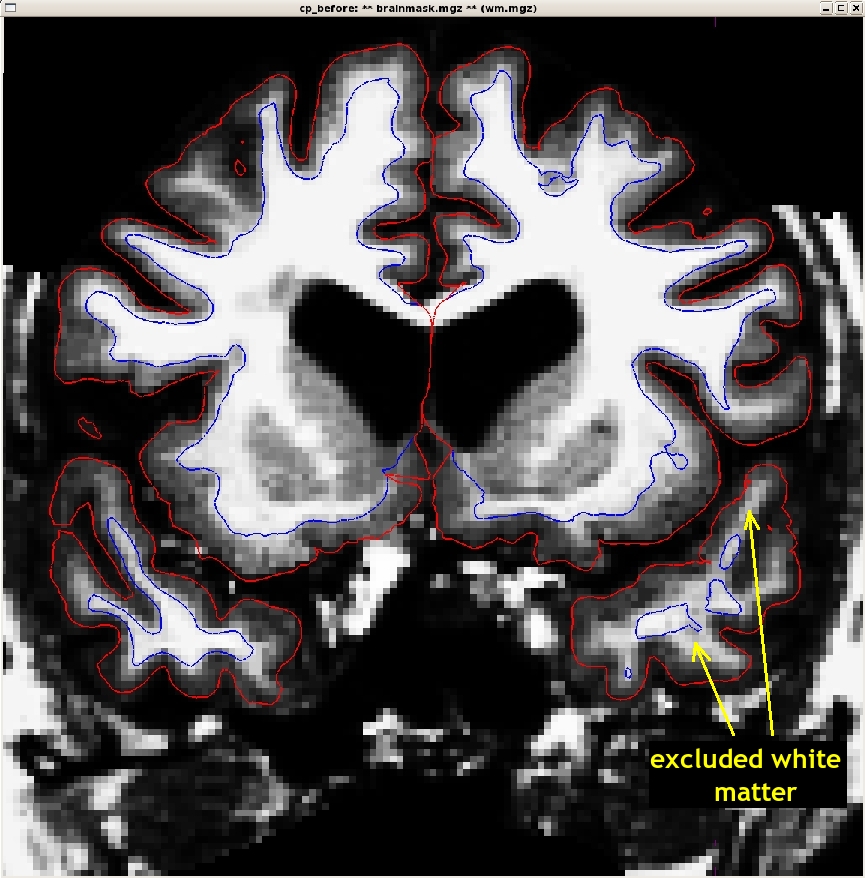
To add control points you will first need to select the Edit Control Points tool  . Middle-mouse-button clicking will create a control point; right-button clicking will delete a control point. As you select control points, they will appear as small green crosshairs. Select a few control points around your trouble areas, space them out throughout the brain and on different slices. You want to pick points in a region where the wm intensity is lower than it should be (that is, having a voxel value less than 110).
General tips for adding control points:
- Control points should only be added in regions that are definitely white matter (i.e., not in the cortex, cerebellum, brainstem, or outside of the skull).
- Control points should also only be added in regions where voxel intensity is not 110. A control point in a region that is already normalized to 110 will be useless.
Control points should NOT be used to try and normalize a brain lesion to 110. Such defects should be fixed with white matter edits
- Control points can help recover thin wm strands that are dark by putting some at the base of the strand.
- Control points are also useful in areas of very bright intensity.
- Start off with a few control points spread out in your trouble area. You may need to add more. With experience you will be able to determine how many are appropriate, given your specific subject.
Here is an example of one slice with the control points added. Note that there are other control points spread out through other slices as well.
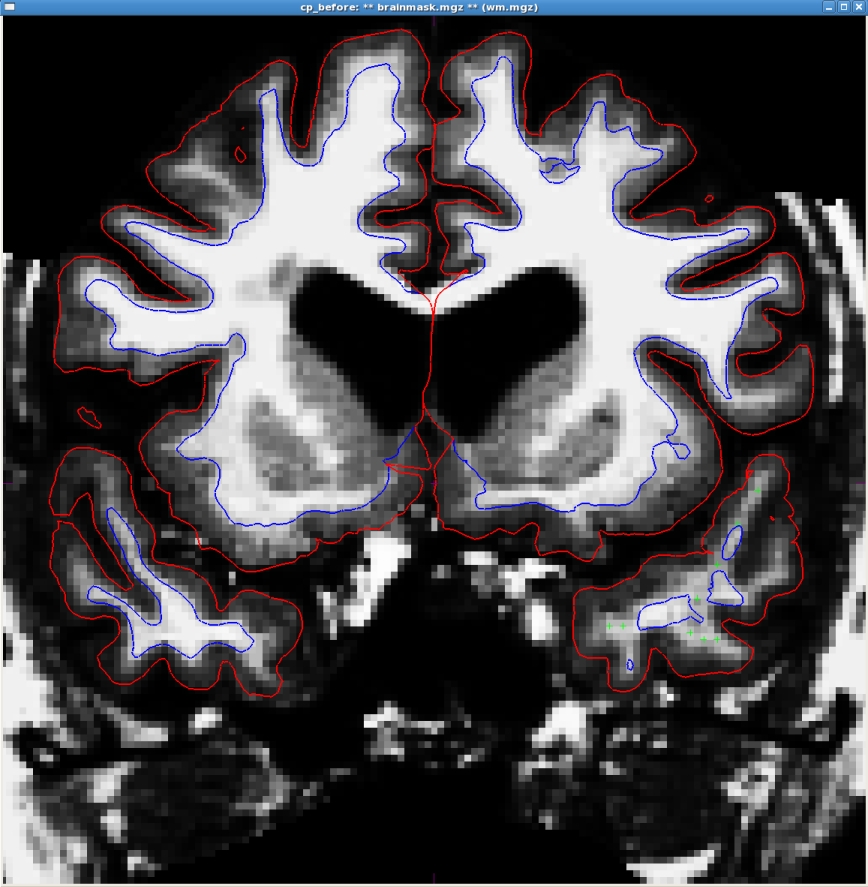
After adding the control points, go to File -> Save Control Points; this will create a file called <subject name>/tmp/control.dat.
Once your control points are saved you can rerun recon-all as follows:
recon-all -autorecon2-cp -autorecon3 -subjid cp_before
Do not run this command if you are conducting the tutorial!
This step will take a long time so there is no need to run it for the purposes of this tutorial.
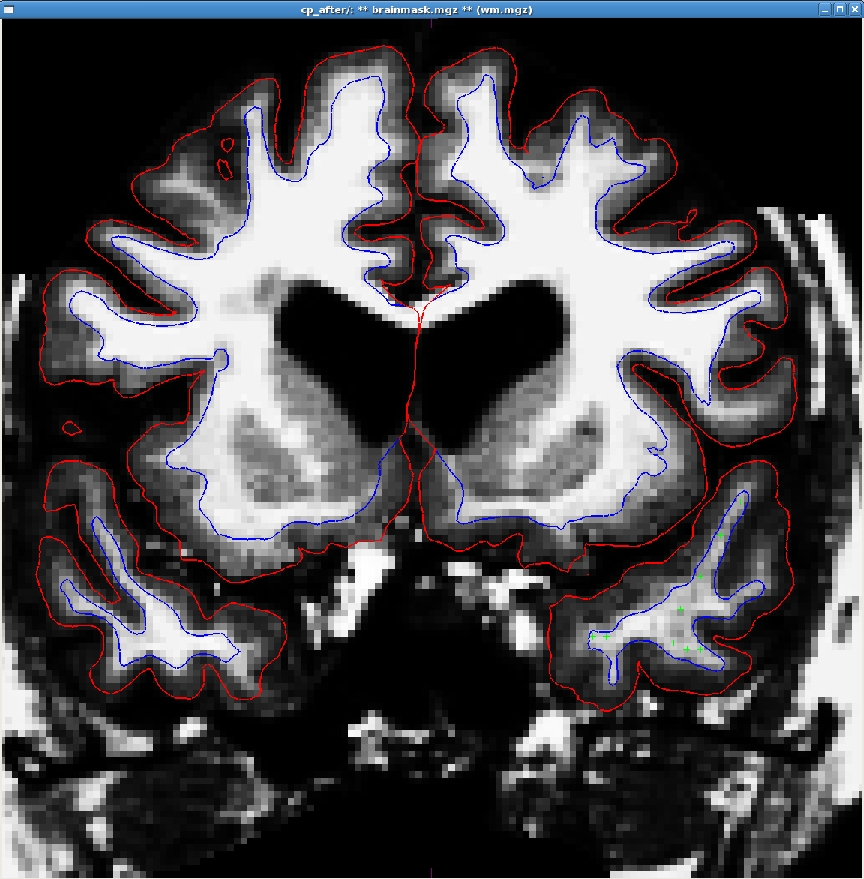
Using the added control points the subject should look like this after rerunning recon-all: