
|
Size: 10849
Comment:
|
← Revision 5 as of 2026-10-28 16:27:35 ⇥
Size: 10849
Comment:
|
| Deletions are marked like this. | Additions are marked like this. |
| Line 4: | Line 4: |
| This page is part of the [[PhotoTools|freesurfer photo tool documentation]]. It describes the standard operating procedure for scanning fixed ex vivo tissue specimens at Massachusetts General Hospital (MGH). We use an ''EinScan Pro HD'' scanner with the "industrial pack", which includes a turntable that rotates the specimen so it is scanned from multiple angles. A high-quality surface scan is crucial for an accurate reconstruction, because it is the 3D-reference to which the slabs are registered to. Later sections cover how to assess the quality of a surface mesh, with tips for checking scans.<<BR>> | This page is part of the [[PhotoTools|FreeSurfer photo tool documentation]]. It describes the standard operating procedure for scanning fixed ex vivo tissue specimens at Massachusetts General Hospital (MGH). We use an ''EinScan Pro HD'' scanner with the "industrial pack", which includes a turntable that rotates the specimen so it is scanned from multiple angles. A high-quality surface scan is crucial for an accurate reconstruction, because it is the 3D-reference to which the slabs are registered to. Later sections cover how to assess the quality of a surface mesh, with tips for checking scans.<<BR>> |
Surface Scanning Protocol
Contents
This page is part of the FreeSurfer photo tool documentation. It describes the standard operating procedure for scanning fixed ex vivo tissue specimens at Massachusetts General Hospital (MGH). We use an EinScan Pro HD scanner with the "industrial pack", which includes a turntable that rotates the specimen so it is scanned from multiple angles. A high-quality surface scan is crucial for an accurate reconstruction, because it is the 3D-reference to which the slabs are registered to. Later sections cover how to assess the quality of a surface mesh, with tips for checking scans.
What a good reference mesh needs
- Surface scans must be done after the cerebellum is sectioned.
- The sides of the specimen are appropriately captured.
A watertight mesh, saved as .stl.
Scanner Setup
To set up the turntable and scanner, adjust the tripod so that the scanner has a clear view of the whole turntable plate. Place the scanner at approximately 45˚ and 8–10 inches from the turntable. If the turntable is not available, the Shining3D software guides the user to the right scanner distance in "Handheld" mode. A later section gives some tips for scanning in handheld mode.
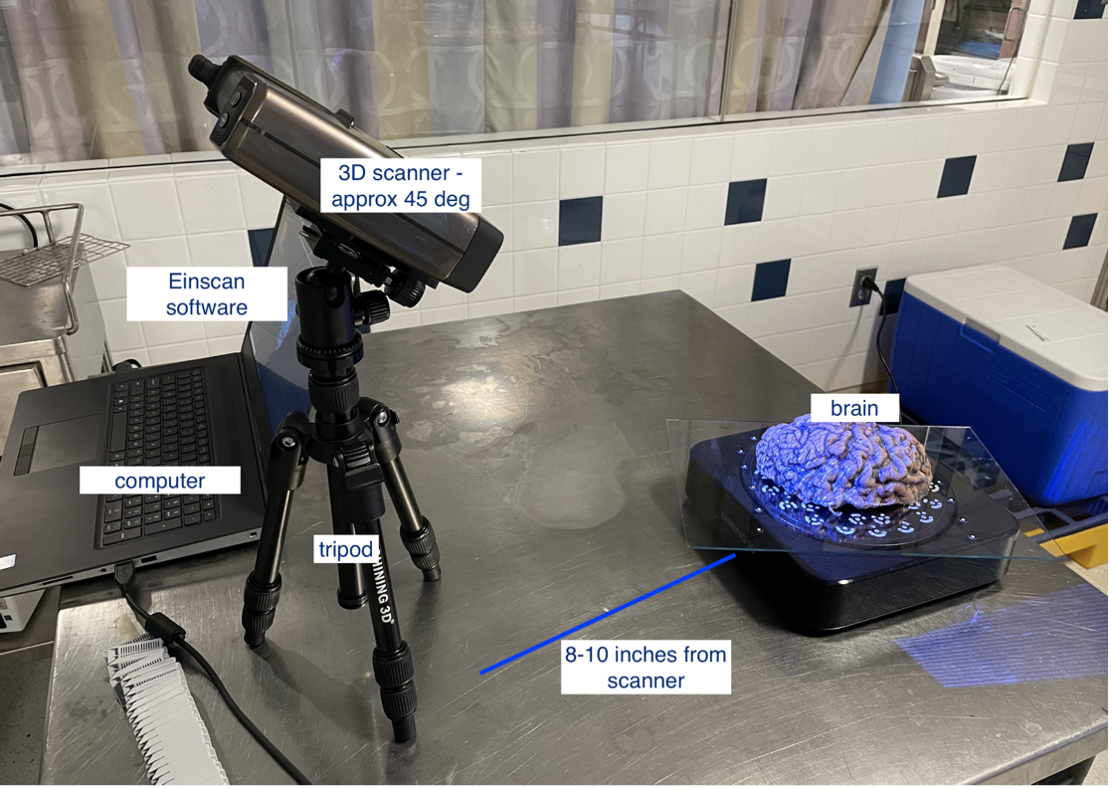
Scanner setup for a turntable scan.
Next, launch the latest version of the Shining3D software for the EinScan Pro HD. Software for all EinScan 3D scanners can be found at einscan.com/support/download/. A menu asks for the type of scan: fixed scan (using the turntable), handheld HD scan, or handheld rapid scan. Select "Fixed Scan" to use the turntable add-on, and create a new "Non-texture Scan" project. For users using the "Handheld" mode, we recommend the rapid scan, as it has plenty of resolution and is much easier to use compared to the HD mode.

Texture settings prompt when creating a new project.
The main scan menu should now be on the screen, where you can set the parameters for the scan. On the left-hand side of the screen is a preview of the scanner's field of view.
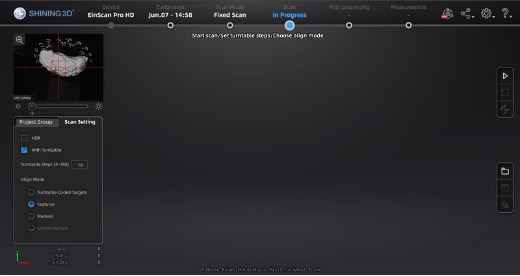
Main scan menu.
In the Scan Setting menu, make sure the "with Turntable" box is checked. Use the alignment mode with markers rather than "Turntable Coded Targets": tissue can easily cover the turntable targets, which affects point-cloud registration. The tissue must not slide on the turntable. Sliding is most likely when scanning the medial wall; it can be reduced by lowering the turntable speed (we recommend a speed setting of 3) and by gently patting the tissue with a linen towel to remove excess fixative. In handheld mode, we also highly recommend using markers, which greatly improve scanning speed and ease of use.
The number of turntable steps sets how many scans are acquired and stitched together. More steps can give a higher-resolution surface but increase the scan time, and there are diminishing returns beyond a certain number. We recommend 36 turntable steps, which we consider a good balance between acquisition time and scan quality.
For handheld scans, we use these parameters:
- Texture: Non-texture scan
- Mode of alignment: Hybrid
- Operation mode: Classic (scanning speed: 15 fps)
- Resolution: High (0.5 mm)
Sample Setup
After removing the cerebellum, we acquire a surface scan of the specimen before sectioning it into slabs for photography. We place a glass sheet on top of the turntable to protect it and make cleaning easier; the glass sheet carries markers that are used for tracking. Place the specimen in the middle of the turntable so that the scanner has the best view of it as it rotates. If the scan is set to "Turntable Coded Targets", covering the turntable targets will affect how the scans are stitched. When using custom markers, which we recommend, the turntable targets should be covered completely. When using custom markers in either fixed or handheld mode, make sure the specimen does not cover any of the markers on the glass sheet.
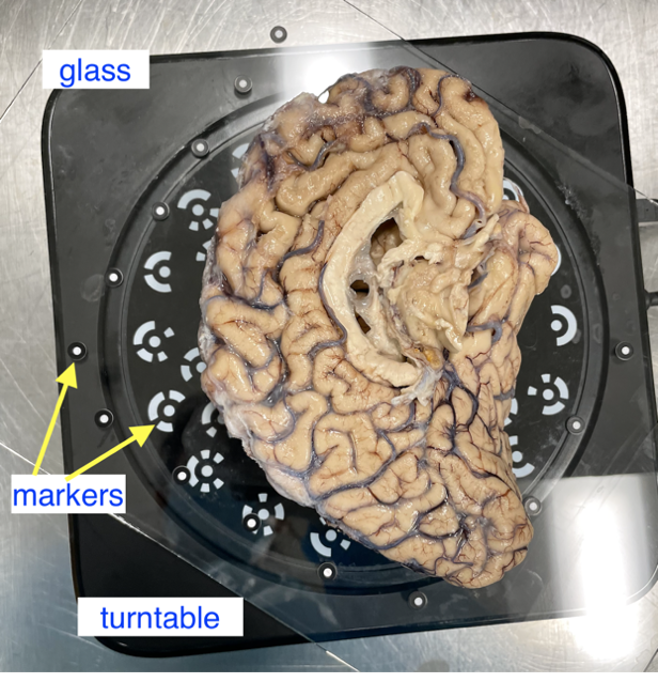
Sample placed on the turntable, lateral side down.
For every specimen, we create two scans in opposite orientations. For hemispheres, we first scan with the medial side down, then flip the hemisphere and scan with the lateral side down. Again, to reduce movement, we wipe excess fixative off the glass sheet to improve traction. Whole brains are scanned upright (brainstem down) and upside down. Although whole brains tend not to move during a scan, they can deform between the two orientations, which can cause errors in the final surface reference. Errors in the surface registration can also occur for hemispheres with severe atrophy.
Note: The cerebellum must be removed before scanning. It is not part of the reconstruction because it is not on the photographed slabs, including it in the scan will lead to an incorrect reconstruction.

A scan that incorrectly includes the cerebellum.
Handheld Scanning
Handheld mode is particularly useful for fresh tissue, which cannot hold its shape or be flipped for a two-sided scan without deforming. In this mode, the sample can be placed on a transparent surface so that both sides are scanned without moving the easily deformed tissue.
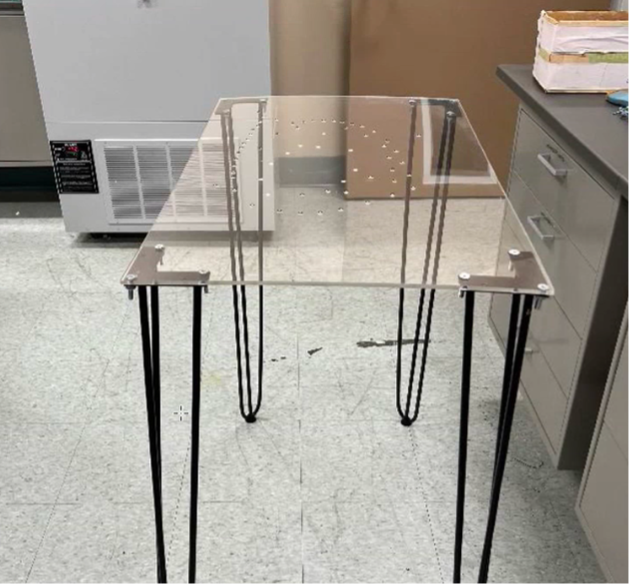
Example of a handheld scan setup.
Running the Scan
In the scan workspace, use the preview window to center the tissue in the field of view. Place the red crosshairs on the middle of the specimen so that it is fully covered as the turntable rotates.
The camera exposure has a large effect on scan quality: an incorrect exposure gives noisier surfaces in the scanned point clouds. Adjust the exposure in the main scan menu, below the camera preview.

Scanner exposure slider.
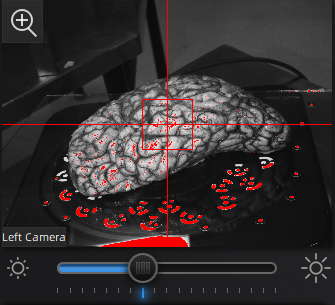
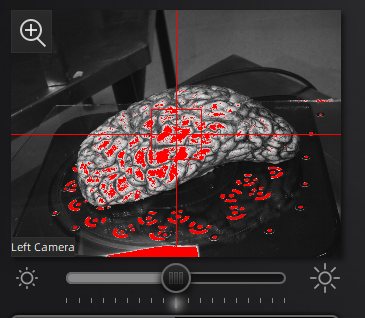
Use the preview window to check the exposure: overexposed areas appear red. A good exposure shows some red areas, but not too many; see below for an example of a good exposure. For specimens with particularly difficult lighting, HDR mode can be used to render darker features better.
|
|
|
Overexposed: red overlay on the sample, bright image |
Underexposed: black overlay on the sample, dark image |
Good: sample and markers visible, decent contrast |

HDR Mode
HDR mode is used for samples with dark features such as bruising or veins. At each turntable step, it captures three images at different exposures, which captures darker and deeper structures in the tissue better. For example, this mode helps when no point cloud is generated near medial structures, including the 3rd ventricle, septum pellucidum, corpus callosum, parahippocampal gyrus, occipitotemporal gyrus, and any optic structures (nerve, chiasm).
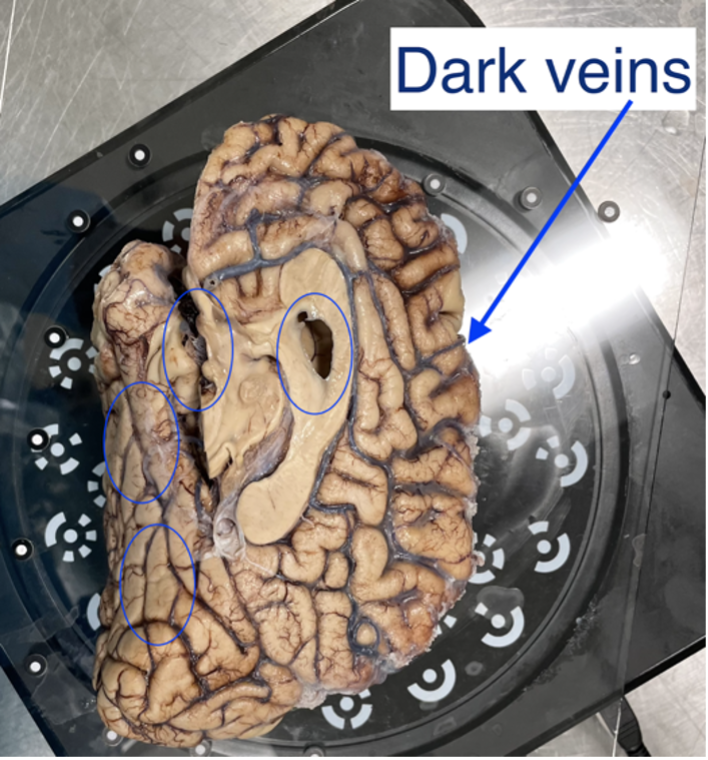
A sample with dark veins, where HDR mode helps.
Editing and Saving Point Clouds
Removing Excess Elements
- If the scanner picked up unwanted geometry, remove the excess data or turntable markers with the delete tool.
- Select the extra elements by holding the Shift key and left-clicking.
- Delete them by clicking the "Delete Selected Data" button or pressing the Delete key.
- Once all the necessary edits are done, click the "Complete Editing" check-mark icon.
- Note: point clouds are easier to edit than meshes, so remove any excess elements before generating a mesh.
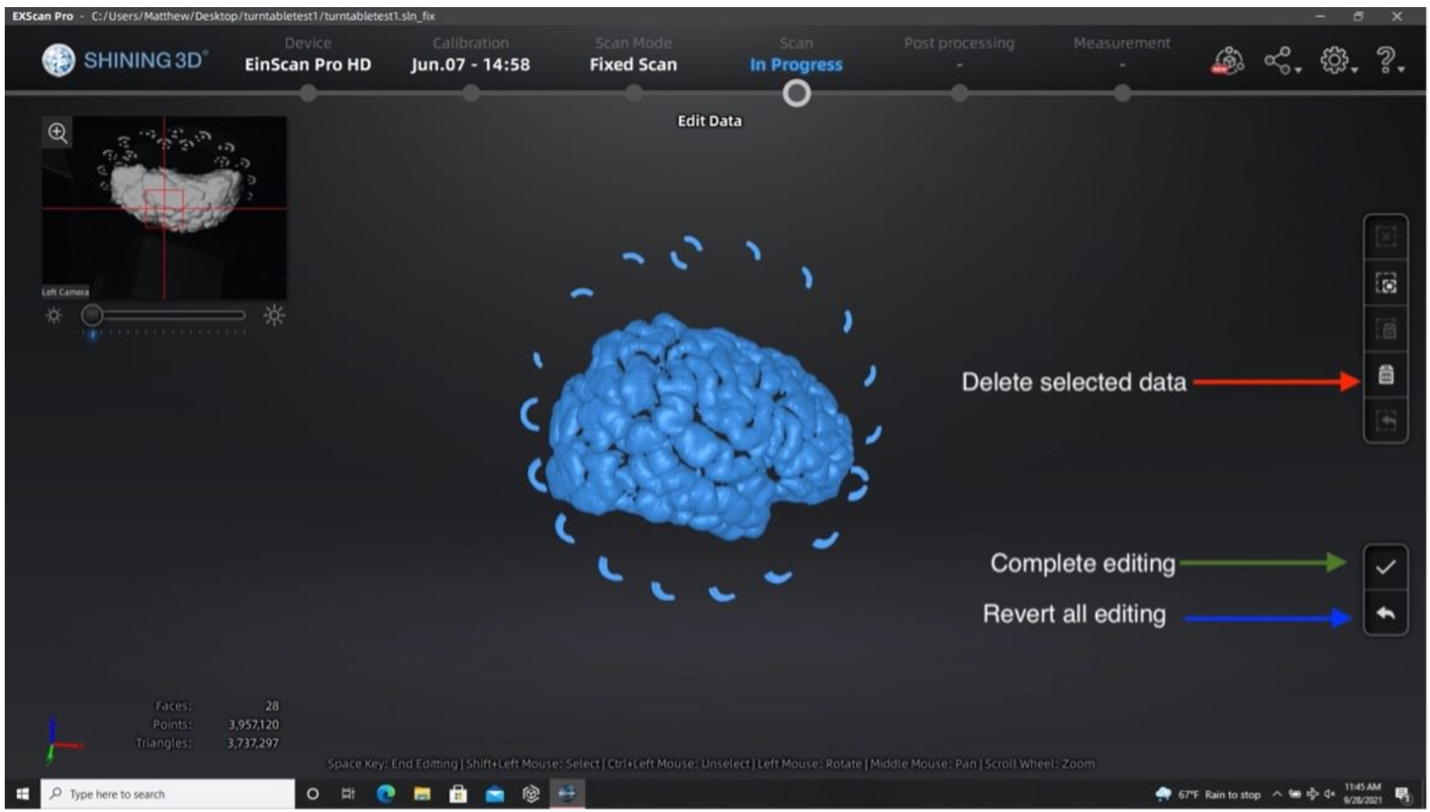
Running the second scan after removing excess elements from the first set of point clouds.
- When you finish editing, a point cloud is generated and saved automatically as "Project 1".
- Briefly check the quality of the scan, looking for noise or holes in the surface. Some gaps in the point clouds are normal. Any scan can be redone or added to at any time to get better results.
Aligning Both Runs
If you have two scanning sessions, their point clouds can be registered in two ways: automatically or manually. Only use manual alignment if the automatic method fails.
- Click the alignment icon and select both scanning sessions. Click the automatic alignment button at the top left of the screen. If the alignment fails, continue with the next steps.
- Hold the Shift key and left-click to select three matching landmarks on each surface. Ideally, place one point each on the anterior, superior and posterior sides of the brain. Spread the points out as much as possible for the best alignment.
- Click Complete when the alignment is finished.
Creating a Mesh
- Click the global optimization and confirm the resulting point cloud.
- Click the mesh icon to generate a mesh model from your point clouds.
- Select "Watertight", which creates a closed mesh with no holes.
- Choose the "High detail" option for the best mesh resolution.
- Select "No filter" so that no smoothing is applied to the mesh.
- Meshing takes about 3 minutes or more, depending on the computer.
Save your mesh when meshing has finished. It should be saved as an .stl file automatically; we also recommend saving your point clouds (.asc files).
Addressing Mesh Quality
The sides of the sample are critical for aligning the point clouds correctly. Poorly captured sides lead to inaccurate alignment between the scans, which causes problems in the final reconstruction. The following example shows a handheld scan in which the sides of the tissue were not captured, giving a flatter, thinner shape that will reduce the quality of the final reconstruction.
Ideally, the sides of the sample should be captured, as in the following example. In a handheld scan, it can be difficult to capture the sides of the sample without also capturing other surfaces; these extra surfaces can be selected and deleted in the same way as markers.
|
|
Bad: the sides are missing in the top scan, so the mesh is too thin |
Good: the sides of the tissue are captured |
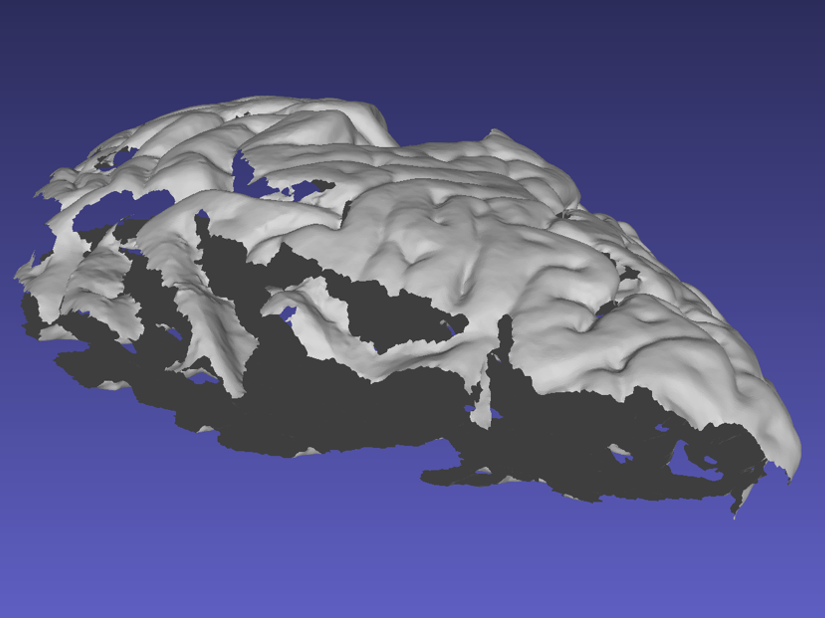

Note that the good mesh has some holes from deep sulci, which do not cause problems for the reconstruction: watertight meshing handles small gaps in the point cloud.