|
Size: 18187
Comment:
|
Size: 20609
Comment:
|
| Deletions are marked like this. | Additions are marked like this. |
| Line 6: | Line 6: |
| * Gazula, H., Tregidgo, H.F., Billot, B., Balbastre, Y., Williams Ramirez, J., Herisse, R., Deden-Binder, L.J., Casamitjana, A., Melief, E.J., Latimer, C.S. and Kilgore, M.D., 2024. Machine learning of dissection photographs and surface scanning for quantitative 3D neuropathology. Elife, 12, p.RP91398. [[https://doi.org/10.7554/eLife.91398.4 | doi]] Automatic segmentation model uses nnUNet. If you use the automatic segmentation, also cite: * Williams Ramirez, J., Zemlyanker, D., Deden-Binder, L., Herisse, R., Garcia Pallares, E., Gopinath, K., Gazula, H., Mount, C., Kozanno, L.N., Marshall, M.S., Connors, T.R., Frosch, M.P., Montine, M., Oakley, D.H., Mac Donald, C.L., Keene, C.D., Hyman, B.T., Fischl, B. and Iglesias, J.E., 2026. A public generalizable AI tool for automated segmentation of coronal brain tissue slabs for 3D neuropathology. PLOS One, 21(8), p.e0355740. [[https://doi.org/10.1371/journal.pone.0355740 | doi]] |
* Gazula, H., Tregidgo, H.F., Billot, B., Balbastre, Y., Williams Ramirez, J., Herisse, R., Deden-Binder, L.J., Casamitjana, A., Melief, E.J., Latimer, C.S. and Kilgore, M.D., 2024. Machine learning of dissection photographs and surface scanning for quantitative 3D neuropathology. Elife, 12, p.RP91398. [[https://doi.org/10.7554/eLife.91398.4|doi]] The machine learning slice imputation in the reconstruction is described in: * Crespo-Aguirre, M., Williams-Ramirez, J., Zemlyanker, D., Hu, X., Deden-Binder, L.J., Herisse, R., Montine, M., Connors, T.R., Mount, C., !MacDonald, C.L., Keene, C.D., Latimer, C.S., Oakley, D.H., Hyman, B.T., Lawry-Aguila, A. and Iglesias, J.E., 2026. Improving neuropathological reconstruction fidelity via AI slice imputation. Acta Neuropathologica Communications. [[https://doi.org/10.1186/s40478-026-02451-3|doi]] Automatic segmentation model trained using nnUNet: * Williams Ramirez, J., Zemlyanker, D., Deden-Binder, L., Herisse, R., Garcia Pallares, E., Gopinath, K., Gazula, H., Mount, C., Kozanno, L.N., Marshall, M.S., Connors, T.R., Frosch, M.P., Montine, M., Oakley, D.H., Mac Donald, C.L., Keene, C.D., Hyman, B.T., Fischl, B. and Iglesias, J.E., 2026. A public generalizable AI tool for automated segmentation of coronal brain tissue slabs for 3D neuropathology. PLOS One, 21(8), p.e0355740. [[https://doi.org/10.1371/journal.pone.0355740|doi]] |
| Line 12: | Line 18: |
| The machine learning slice imputation in the reconstruction is described in: * Crespo-Aguirre, M., Williams-Ramirez, J., Zemlyanker, D., Hu, X., Deden-Binder, L.J., Herisse, R., Montine, M., Connors, T.R., Mount, C., !MacDonald, C.L., Keene, C.D., Latimer, C.S., Oakley, D.H., Hyman, B.T., Lawry-Aguila, A. and Iglesias, J.E., 2026. Improving neuropathological reconstruction fidelity via AI slice imputation. Acta Neuropathologica Communications. [[https://doi.org/10.1186/s40478-026-02451-3 | doi]] [[https://www.youtube.com/watch?v=wo5meYRaGUY|Click here for a video with an overview of the method]]<<BR>> {{attachment:video_screenshot.png||width="666",}} <<BR>><<BR>> |
[[https://www.youtube.com/watch?v=wo5meYRaGUY|Click here for a video with an overview of the method]]<<BR>> {{attachment:video_screenshot.png||width="666"}} <<BR>><<BR>> |
| Line 37: | Line 37: |
| Line 42: | Line 41: |
| Line 55: | Line 55: |
| Line 59: | Line 58: |
| Line 61: | Line 63: |
| '''--photos_of_posterior_side''' must be used for the final reconstruction. | '''--photos_of_posterior_side''' must be used for the final reconstruction command. |
| Line 65: | Line 67: |
| {{attachment:19_slab_placement.png||width="667",height="483"}} <<BR>>''Tissue slab placement a) Properly placed tissue b) Tissue placed in a non-anatomical manner.''<<BR>> | {{attachment:19_slab_placement.png||height="483",width="667"}} <<BR>>''Tissue slab placement a) Properly placed tissue b) Tissue placed in a non-anatomical manner.''<<BR>> |
| Line 69: | Line 71: |
| {{attachment:20_incorrect_tissue_placement.png||width="659",height="333"}} <<BR>> <<BR>> | {{attachment:20_incorrect_tissue_placement.png||height="333",width="659"}} <<BR>> <<BR>> |
| Line 74: | Line 76: |
| {{attachment:21_twoPoint.jpeg||width="664",height="382"}} <<BR>> '''''Tip''''': It is better to use landmarks that are as far apart as possible, as the relative error when manually setting the reference in pixels per millimeter decreases with greater distances. |
{{attachment:21_twoPoint.jpeg||height="382",width="664"}} <<BR>> '''''Tip''''': It is better to use landmarks that are as far apart as possible, as the relative error when manually setting the reference in pixels per millimeter decreases with greater distances. |
| Line 80: | Line 82: |
| {{attachment:22_fourPoint.png||width="659",height="561"}} <<BR>> | {{attachment:22_fourPoint.png||height="561",width="659"}} <<BR>> |
| Line 84: | Line 86: |
| {{attachment:23_fiducials.png||width="416",height="439"}} <<BR>> | {{attachment:23_fiducials.png||height="439",width="416"}} <<BR>> |
| Line 88: | Line 90: |
| {{attachment:24_fiducialTissue.png||width="674",height="460"}} <<BR>> | {{attachment:24_fiducialTissue.png||height="460",width="674"}} <<BR>> |
| Line 92: | Line 94: |
| {{attachment:25_tissueSpace.png||width="685",height="404"}} <<BR>> | {{attachment:25_tissueSpace.png||height="404",width="685"}} <<BR>> |
| Line 96: | Line 98: |
| {{attachment:26_tissueBox.png||width="683",height="403"}} <<BR>> | {{attachment:26_tissueBox.png||height="403",width="683"}} <<BR>> |
| Line 100: | Line 102: |
| {{attachment:27_goodContrast.png||width="676",height="478"}} <<BR>> | {{attachment:27_goodContrast.png||height="478",width="676"}} <<BR>> |
| Line 104: | Line 106: |
| = Recommended Directory Structure = We recommend the following directory structure for data and case organization. Each case should have its own directory, and within each case directory, create the following seven subdirectories to store the respective outputs: 1. photos – Brain slab images (.JPG, .PNG). 1. deformed - Pixel-corrected images. 1. point_clouds – Files from the project collected from the surface scanner. 1. mesh – Watertight mesh processed from point clouds on the scanner (.stl). 1. masked – Binarized masks created from pixel-corrected photos. 1. connected_components - .npz files showing the connected components for each image. 1. recon - Final reconstructed volumes, and segmentations. Note that during the image preprocessing GUI files under deformed, masked, and connected_components will be automatically generated. After each step, ensure that your data is saved to the appropriate subdirectory. Below is an example of how files should be organized in the recommended structure: <<BR>> || {{attachment:28_demoDirectory.png||height="555"}} || {{attachment:29_demoDirectory.png||height="180"}} <<BR>> {{attachment:29.2_demoDirectory.png||height="203"}} || <<BR>><<BR>> = Photo Preprocessing = The following guide will walk through the steps to preprocessing the brain slab images. This includes pixel correction, binarizing images, and selecting connected components. Make sure Freesurfer is properly sourced, and you have downloaded the model weights before continuing with the tutorial. <<BR>> == Pixel Correction Using Fiducials == Using the provided fiducial markers, we can correct for non-uniformities in pixel size across the images. If not available this step can be skipped retrospective correction modes can be used in the '''dissection_photo_gui''' covered in the next section. For images with fiducials, a calibration is required for pixel correction. For best results, use an image of the setup without tissue.<<BR>> To start the fiducial calibration use command '''fiducials_calibration''' {{attachment:30_fiducialCalibIntro.png||width="550",height="275"}} <<BR>> After loading the image, start the calibration process. {{attachment:31_fiducialCalibWindow.png||width="548",height="440"}} <<BR>> Pan and zoom can be used to have a precise selection in these GUIs. First, select the center of one of the fiducials, followed by selecting the outer ring. || {{attachment:32_fiducialCenter.png||height="237"}} || {{attachment:33_fiducialDiameter.png||height="237"}} || ||The first selection at the fiducial center. ||The second selection at the outer circle of the fiducial. || After selecting all the points, set the width and height between the fiducial markers. Next, click “Perform calibration,” to save a calibration '.npz' file. This calibration file will be used for automating pixel correction in subsequent steps, as long as the fiducial markers are not moved. <<BR>> == Dissection Photo GUI == The dissection photo GUI performs all preprocessing tasks, including pixel correction, binarizing images, and selecting connected components. To run the GUI, source Freesurfer and use command '''dissection_photo_gui'''. The first time the GUI is run it will display instructions on setup of model weights for the segmentation step.<<BR>> == Pixel Correction == In the first menu of the '''dissection_photo_gui''' select the input directory with the unprocessed gross photographs. Photographs should be set in the order such that tissue slabs are seen in the order they were cut. Additionally select the output directory where the pixel-corrected images will be saved. Here we have the option to load an optimal calibration file if available to automate pixel correction. Select '''Go!''' when you have defined the required directories. <<BR>> {{attachment:35_dissection_photo_gui_screen_1.png||width="600",height="400"}} <<BR>> If a calibration file was used the next widow will display the pixel-corrected images for quality assurance purposes. Click '''Next''' to proceed assuring the images were corrected.<<BR>><<BR>> If no calibration file is provided the next window will be for the '''Retrospective Correction''' mode. Select the type of calibration, 2-point, 3-point, or 4-point, and its relevant dimensions in millimeters. The 2-point calibration is used when there is a single axis of ground truth measurement, which enables rough pixel size correction (e.g., one ruler in the image). The 3-point calibration is used when there are three points on the corners of a rectangle – but the fourth point is not available (e.g., there are two orthogonal rulers). The 4-point version should be chosen if the four corners of a rectangle can be identified; this is the default model when the automatic mode with calibration file is used. The 3- and 4-point versions enable perspective correction (approximate with 3 points; exact with 4). We can pan and zoom to make precise selections on the image.<<BR>> || {{attachment:36_dissection_photo_gui_screen_2.png||width="400",height="266"}} || {{attachment:37_dissection_photo_gui_screen_2_zoomed.png||width="400",height="266"}} || |
= Part 2: Prerprocessing Photographs with the Dissection Photo App = The dissection photo app has five principal windows for each subject: '''Add photos''', '''Correction''', '''Segmentation''', '''Connected components''' and '''Reconstruction'''. The step bar at the top of the window shows which step is being done, users can click any backtrack by clicking any of the previous steps at any time, alternatively the house icon to return to the Projects screen with a summary of all reconstructions done or in process. For each project work is saved as you go, so the can can be closed at any time to later pick up where you left off. Before continuing, make sure the development version of Freesurfer is properly sourced, you have downloaded the model weights, and have set the '''NNUNET_MODEL_DIR''' as an environment variable pointing to the segmentation model before continuing with the tutorial. To start the application use command '''dissection_photo_2''' <<BR>> == Projects Page == Each specimen corresponds to a '''project''': a folder which will be populated with the outputs from all steps. The project home contains a summary of all projects and their progress. {{attachment:ds2_00_projects.png||width="600"}} <<BR>> Projects Home screen * To start processing a new batch of dissection photographs click on '''New Project'''. * Open a project to continue where you left off or backtrack to any completed steps. '''Tip''' For advanced users, the gear icon can be used to change which resources are used by the automatic segmentation model, covered in [[#Automatic_segmentation_settings|automatic segmentation settings]]. After naming a project you will be prompted to save a folder of the same name. It is in this folder that the outputs of all steps will be stored. == Directory Structure == For each project the following directory structure will be populated with all outputs. ||Folder / file ||Contents || ||`photos/` ||Copy of the original photographs || ||`deformed/` ||Pixel-corrected photos || ||`mask/` ||Binary tissue masks || ||`connected_components/` ||Label maps per slab || ||`recon/` ||The 3D-photo reconstruction || == Step 1. Add photographs == 1. Drag and drop a folder containing dissection photographs, or click '''Upload Images'''. 1. Select the photographs that should be used for the reconstruction. This can be used to omit repeat photographs, dissection photographs of cerebellar tissue, or gross photographs done prior to slabbing. Double click on any image in the grid for a larger preview. 1. If you have or would like to create a calibration file to automate pixel correction, click on '''+ Add a calibration file (optional)''' and follow steps in [[#Making_a_calibration_file|Making a Calibration File]] and then [[#Prospective_Correction_.28Using_fiducial_markers_and_calibration_file.29|Prospective Correction]]. 1. Click '''Get Started.''' === Optional: Making a calibration file === This step only needs to be done once, as long as markers are not moved. For more information on proper usage refer to the ** section in this wiki page. 1. On the Add photos menu, click '''+ Add a calibration file (optional)''', to expand the calibration file box, and click on '''Create One''' under the Upload Calibration button. 1. On the next menu, If you have not printed out the fiducial markers they can be downloaded for printing out by clicking the '''Download Market Printout '''button. 1. Next, place markers at a known distance in a rectangle formation on the photography table. Be sure that opposite sides of the rectangle created by the fiducial markers is parallel - inacurate marker placement can lead to incorrect perspective correction. 1. Upload the photograph of the empty dissection table with just the markers present, and enter width and height of the fiducial box. 1. For each of the markers, click its centre and outer cirlce. Options to zoom, pan, redo/undo, can help fix mistakes and make the best calibration possible. 1. Click '''Save Calibration''' and save your calibration file in a easy to access location. '''Tip''' Because of slight lens distortion, the overlayed labels for the outer circle of the markers might not always align throughout the whole circunference. This is not an issue. ||{{attachment:v2_calibration_start.png||width="460"}} <<BR>> ''The Calibration screen, before a photo is chosen.''||{{attachment:v2_calibration.png||width="460"}} <<BR>> ''All four markers placed (centre and outer circle), with the distances between their centres entered.''|| == Step 2: Pixel Correction == This step corrects all photograph to be at the same pixel size. Additionally can correct for perspective when using a calibration, or doing manual correction in 4-point mode. === Prospective Correction (Using fiducial markers and calibration file) === * Every photo is corrected automatically as soon as Correction opens. The markers are found in each photo separately, so it does not matter if the camera moved between photos. * Check each photo: '''Original''' shows the photo as taken, with the marker centres that were found; '''Corrected''' shows the result. A green tick in the strip at the bottom marks each corrected photo. * If the markers cannot be found in a photo, the app says which ones. On each of them, click the centres of the four markers on the Original view and click '''Correct this photo'''. ||{{attachment:v2_correction_original.png||width="460"}} <<BR>> ''Original: the marker centres found in this photo.''||{{attachment:v2_correction_corrected.png||width="460"}} <<BR>> ''Corrected: the same photo at 0.1 mm per pixel, with rulers.''|| === Retrospective Correction (Using a spatial reference within the photographs) === Choose how many points you can mark, enter the real distances, and place the points on each photo: ||'''Mode'''||'''You need'''||'''Corrects'''|| ||2 Point||One ruler or other known distance (entered as '''Ruler width (mm)''')||Pixel size only|| ||3 Point||Three corners of a rectangle, e.g. two rulers at right angles||Pixel size, approximate perspective|| ||4 Point||Four corners of a rectangle||Pixel size and perspective|| * Ctrl + left click places a point; once all are placed, Ctrl + click moves the nearest one. '''Clear points''' starts again. * Click '''Correct this photo''' (Ctrl + W also moves on to the next photo). Place points on the Original view; the Corrected view is for checking. When every photo is corrected, make sure to click '''Continue to Segmentation'''. == Step 3: Binary Segmentation == While you were correcting, the app was already finding the tissue in each corrected photo. Here you check each mask and fix it. ||{{attachment:v2_segmentation.png||width="460"}} <<BR>> ''An automatic mask (green) that missed part of each slab.''||{{attachment:v2_segmentation_fixed.png||width="460"}} <<BR>> ''The same mask after touching it up.''|| * '''Brush''' (Q) adds to the mask, '''Eraser''' (W) removes from it, and '''Fill''' (E) fills an area. Apply the tool with Ctrl + left drag; set the sizes with the sliders. * '''Mask opacity''' changes how see-through the mask is; '''Show mask''' (Ctrl + T) hides and shows it. Undo and redo with Ctrl + Z and Ctrl + Shift + Z. * Leave out everything that is not slab tissue: the background, labels, and fragments that do not belong to a slab. * '''IMPORTANT''': the cortical surface should not be part of the masks, so the first slab (if photographed from the anterior side) or the last slab (if photographed from the posterior side) should '''NOT''' be included. * You need to look at every photo's mask before '''Continue to Connected Components''' becomes available; a note at the top says which ones are left. === Automatic Segmentation Settings === Open them from the gear on the Projects screen. Changes apply the next time photos are segmented. {{attachment:v2_settings.png||width="520"}} <<BR>> ''Automatic segmentation settings.'' ||'''Setting'''||'''What it does'''|| ||Automatic segmentation (On / Off)||Off: every mask is drawn by hand from scratch. Only turn it off if the automatic segmentation fails on your photos.|| ||Model folds||Automatic: 5 folds on a GPU, 1 on the CPU. Five folds are steadier but 4-5x slower.|| ||Run on||Automatic uses the GPU if there is one; or choose GPU or CPU.|| ||Maximum threads||The most processor threads segmentation may use. If the computer has fewer, it uses all it has.|| ||Model folder||The folder of the segmentation model (`nnUNetTrainer__nnUNetPlans__2d`).|| == Step 4: Slab Connected Components == Here you tell the app which pieces of tissue belong to which slab. * In each photo, draw a box inside each slab (Ctrl + left drag), always in the same order: anterior to posterior, or posterior to anterior. The slab is coloured as soon as its box is drawn. * Keep boxes small and inside the tissue, and do not let them overlap. If a slab is in several pieces (e.g. a detached temporal lobe), make sure its box touches every piece. * Click '''Save components''' (Ctrl + W also moves on to the next photo); moving to another photo saves it too. A green tick marks saved photos. If you change a saved photo, its tick goes away until you save it again. * Undo and redo with Ctrl + Z and Ctrl + Shift + Z. '''Slab overlay''' changes how strongly the slabs are colored. ||{{attachment:v2_components.png||width="460"}} <<BR>> ''One box inside each slab; each slab is coloured.''||{{attachment:v2_components_saved.png||width="460"}} <<BR>> ''Saved: the photo gets a green tick in the strip.''|| == Step 5: Photo Reconstruction == Please see our separate page on the command [[mri_3d_photo_recon]]. The last step runs [[mri_3d_photo_recon]] on the images of the project. While the reconstruction is running in the background the user can continue processing images of other cases. 1. '''Output folder''': the folder inside the project for the results (default `recon`). 1. '''Slabs''': the hemisphere, the slab thickness in mm, which face of the slabs was photographed (anterior or posterior), the order the photos were taken in, and whether the tissue is fixed or fresh. 1. '''Reference''': none (the MNI atlas), a surface mesh (`.stl`), an MRI scan, or both. See [[#Which reference should I use?|Which reference should I use?]] 1. Optionally: the number of threads, a graphics card, and the advanced settings. Empty expert weights use the command's own defaults, shown in grey. 1. Click '''Run Reconstruction'''. The command being run is shown on the right ('''Copy command''' copies it, for example to run it on another computer), and its output appears in the log below it. The reconstruction keeps running if you switch to another project; the Projects screen shows its progress. {{attachment:v2_reconstruction.png||width="700"}} <<BR>> ''The Reconstruction step, with the command that will be run.'' |
| Line 155: | Line 219: |
| After pixel correcting all images, click '''Proceed to Segmentation''' to continue to the next step.<<BR>> == Tissue Segmentation == After selecting an output directory for the masked images, our automatic segmentation tool will immediately start predicting a binary mask per each photograph. If a GPU is available all five folds of the model will be run which will slightly increase segmentation accuracy. After the first photograph is segmented by the model, the user can start cleaning the predicted binary masks. Here the user can pan and zoom like before, but can additionally use a brush tool to remove or add any pixels. Remove any non-slice tissue and the background. The opacity of the predicted mask can also be changed using the provided slider, or toggled using Ctrl+Z. <<BR>> || {{attachment:38_dissection_photo_gui_screen_3_noseg.png||width="400",height="266"}} || {{attachment:39_dissection_photo_gui_screen_3_seg.png||width="400",height="266"}} || <<BR>> '''IMPORTANT''': The cortical surface should not be part of the masks, so the first (if photographed from the anterior side) or last slice (if photographed from the posterior side) should '''NOT''' be considered. You can either leave it out of the mask or ignore it when processing with the GUI. <<BR>> Once we are satisfied with the mask, click '''Next''' to proceed to the next image. After all images have been segmented and cleaned, click '''Proceed to CC''' to continue to the connected components step. <<BR>> == Connected Components == Like previous steps, select an output directory for the connected components masks. The connected components section of the GUI will display the masked and pixel-corrected photographs. Here the user will draw boxes around the tissue slabs in each photograph. The GUI will then save the connected components as .npy files. <<BR>> {{attachment:40_dissection_photo_gui_screen_4_tissue.png||width="600",height="400"}} <<BR>> For each image select slices in order, either anterior-posterior or posterior-anterior. Remain consistent of slice order on all photographs. Connected components are selected by clicking and dragging to draw a box in a region of each individual slab in the photograph. After a box has been drawn in each individual slab, click '''Next ''' to save the output .npy file and move to the next image. '''Tip''': Make sure no boxes are overlapping. Once a box is drawn over the tissue, the slab will be colored to show what is being included as one slice.<<BR>> {{attachment:41_dissection_photo_gui_screen_4_color.png||width="600",height="400"}} <<BR>> Above is an example of how to correctly draw the boxes within the brain slabs themselves. These boxes inform the GUI that the pixels connected to these slabs are all part of the same tissue slice. Note the box covers tissue from the temporal lobe as it can sometimes be disjoint from the rest of the slab. <<BR>> Below is an example of how '''__NOT__''' to draw boxes for this GUI. Notice the occurrence of overlap between boxes and the inclusion of an abundance of black space. Try to keep the boxes drawn to small regions within the brain slabs themselves as to not include any background pixels. <<BR>> {{attachment:42_dissection_photo_gui_screen_4_bad.png||width="600",height="400"}} <<BR>><<BR>> = Photo Reconstruction = Please see our separate page on the command [[mri_3d_photo_recon]] <<BR>> = Photo-Synthseg Segmentation = |
= Part 3: Downstream Tasks = == Photo-Synthseg Segmentation == |
| Line 195: | Line 224: |
| '''Example for running SynthSeg on a Left Hemisphere''' <<BR>> . mri_synthseg \ . --i ./recon/photo_recon.mgz \ . --o ./recon/photo_recon_synthseg.mgz \ . --photo left \ . --parc |
'''Example for running SynthSeg on a Left Hemisphere''' <<BR>> . mri_synthseg \ ''''' ''''' . --i ./recon/photo_recon.mgz \ ''''' ''''' . --o ./recon/photo_recon_synthseg.mgz \ ''''' ''''' . --photo left \ ''''' ''''' . --parc ''''' ''''' |
Photo Reconstruction Documentation
Contents
- Photo Reconstruction Documentation
- Part 1: Acquisition
- Part 2: Prerprocessing Photographs with the Dissection Photo App
- Part 3: Downstream Tasks
Citation
If you use these tools in your analysis, please cite:
Gazula, H., Tregidgo, H.F., Billot, B., Balbastre, Y., Williams Ramirez, J., Herisse, R., Deden-Binder, L.J., Casamitjana, A., Melief, E.J., Latimer, C.S. and Kilgore, M.D., 2024. Machine learning of dissection photographs and surface scanning for quantitative 3D neuropathology. Elife, 12, p.RP91398. doi
The machine learning slice imputation in the reconstruction is described in:
Crespo-Aguirre, M., Williams-Ramirez, J., Zemlyanker, D., Hu, X., Deden-Binder, L.J., Herisse, R., Montine, M., Connors, T.R., Mount, C., MacDonald, C.L., Keene, C.D., Latimer, C.S., Oakley, D.H., Hyman, B.T., Lawry-Aguila, A. and Iglesias, J.E., 2026. Improving neuropathological reconstruction fidelity via AI slice imputation. Acta Neuropathologica Communications. doi
Automatic segmentation model trained using nnUNet:
Williams Ramirez, J., Zemlyanker, D., Deden-Binder, L., Herisse, R., Garcia Pallares, E., Gopinath, K., Gazula, H., Mount, C., Kozanno, L.N., Marshall, M.S., Connors, T.R., Frosch, M.P., Montine, M., Oakley, D.H., Mac Donald, C.L., Keene, C.D., Hyman, B.T., Fischl, B. and Iglesias, J.E., 2026. A public generalizable AI tool for automated segmentation of coronal brain tissue slabs for 3D neuropathology. PLOS One, 21(8), p.e0355740. doi
- Isensee, F., Jaeger, P.F., Kohl, S.A., Petersen, J. and Maier-Hein, K.H., 2021. nnU-Net: a self-configuring method for deep learning-based biomedical image segmentation. Nature methods, 18(2), pp.203-211.
Click here for a video with an overview of the method
Purpose
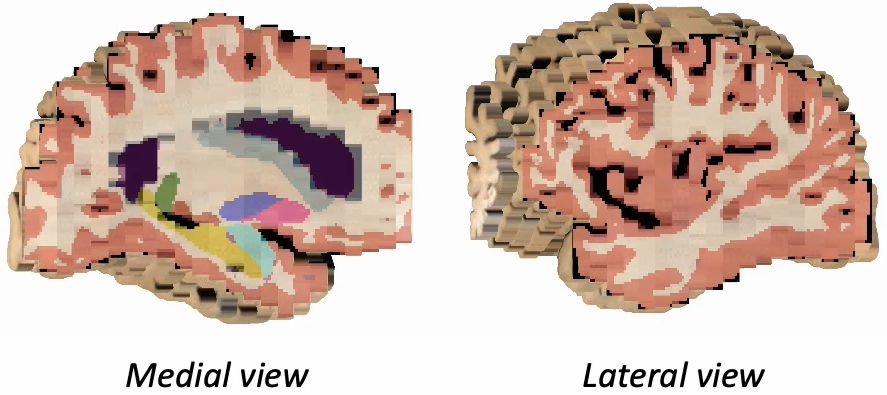
This manual provides an end-to-end guide for using the tools available on FreeSurfer to reconstruct dissection photographs of brain slabs into a 3D-reconstruction for quantitative analysis. Reconstructions are done by registering photographs to a 3D reference like an MRI, a post-mortem surface scan, or an atlas. The guide touches on acquisition of surface scans prior to slabbing, preparing tissue slabs for gross photography, and how to preprocess photographs using the dissection_photo graphical user interface.
Requirements
The latest FreeSurfer development version sourced in your terminal.
- Model files (downloaded once):
the reconstruction model downloaded, into $FREESURFER_HOME/models
- A CUDA enabled graphics card is optional: segmentation and reconstruction are much faster with one.
Overview
Acquire a 3D reference either a surface scan or an MRI. Without one, slabs are registered to an atlas.
Photograph the tissue slabs
Preprocess the photos on the dissection photo GUI
Reconstruct the 3D volume
Downstream analysis of photographs
Part 1: Acquisition
Surface scanning
A surface scan of the specimen, taken before it is slabbed after the cerebellum is sectioned. The full scanning protocol is available on its own page: Surface Scanning Protocol.
Summary on key requirements of a reference mesh:
- The cerebellum removed: it is not on the slabs, so including it in the scan leads to an incorrect reconstruction.
- The sides of the specimen captured.
A watertight mesh, saved as .stl. Small holes in the initial point-cloud due to deep sulci are fine - these will be covered by the meshing process.
Preparing Slabs
The following guidelines should be followed when preparing slab images for optimal results.
Guidelines for Brain Slab Image Acquisition
There are some important requirements for the photographic setup of the brain slabs to ensure the best results.
Use a high-contrast background that stands out in uniform contrast to the brain slabs, such as a solid black background. This will make slabs are easier to segment downstream. Using a complex background with color similar to your brain slabs, will lead to a more manual intervention such as having to manually trace contours, which is not only time-consuming but also non-reproducible.
|
|
Difficult to segment low contrast background. |
Easy to segment high contrast background. |
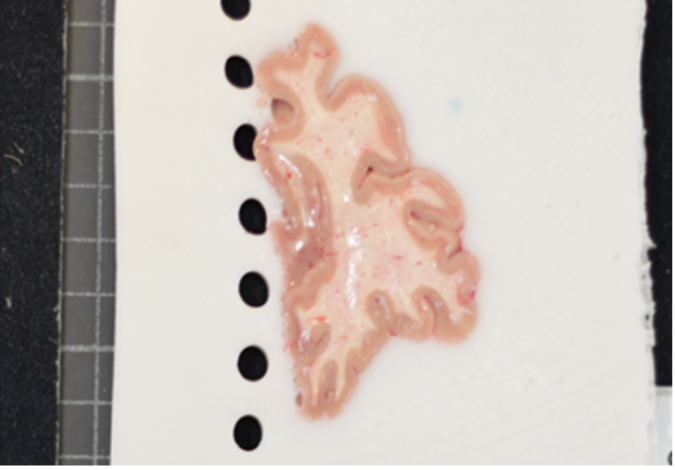
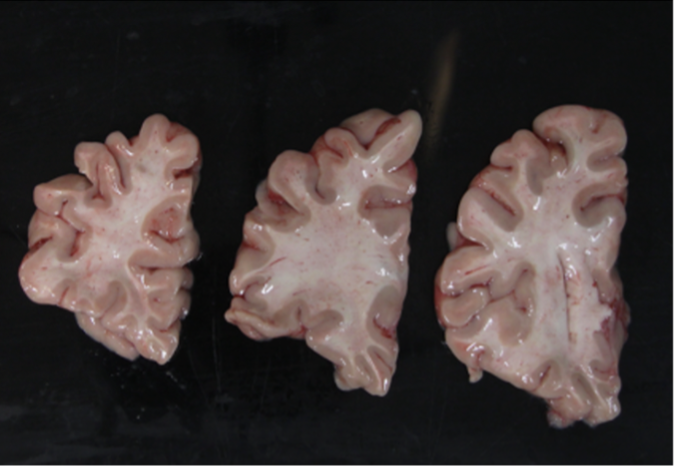
Additionally, all tissue block faces must be facing the same direction. All slices should be either from an anterior or a posterior view. Note if slabs are from the posterior view, an extra flag,
--photos_of_posterior_side must be used for the final reconstruction command.
When a single slice produces multiple tissue blocks, they should be placed as similar to the original anatomy as possible. For example, after acquiring slices from the frontal pole, the initial blocks corresponding to the temporal lobe will often be detached from the main block. The following figure shows a) Proper anatomical placement of tissue and, b) Tissue placed too far apart, which is not anatomically accurate.
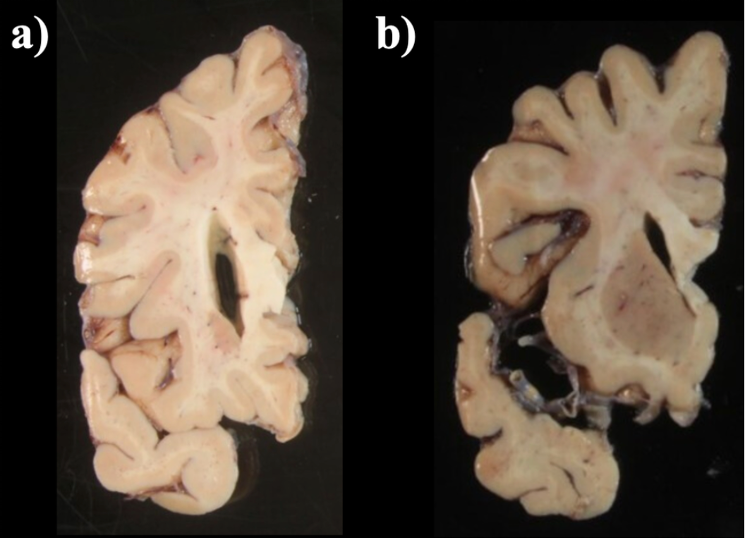
Tissue slab placement a) Properly placed tissue b) Tissue placed in a non-anatomical manner.
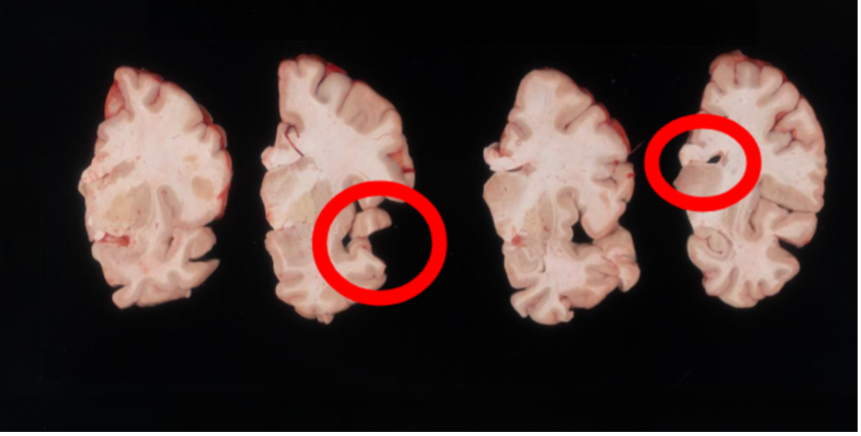
Another example of difficult tissue placement can be the corpus callosum. In the following figure, we see a good example setup with high contrast for the background and good lighting. However, the placement of the corpus callosum on the rightmost slab is incorrect, which will negatively affect volumetric estimates of the third ventricle.
Markers for pixel and perspective corrections
To calibrate pixel size, we will need landmarks with known distances in between them to be provided by the user. The minimum requirement is a ruler, which provides us with two discrete landmarks. This enables rough This method is preferable for legacy images that only have a ruler for reference.
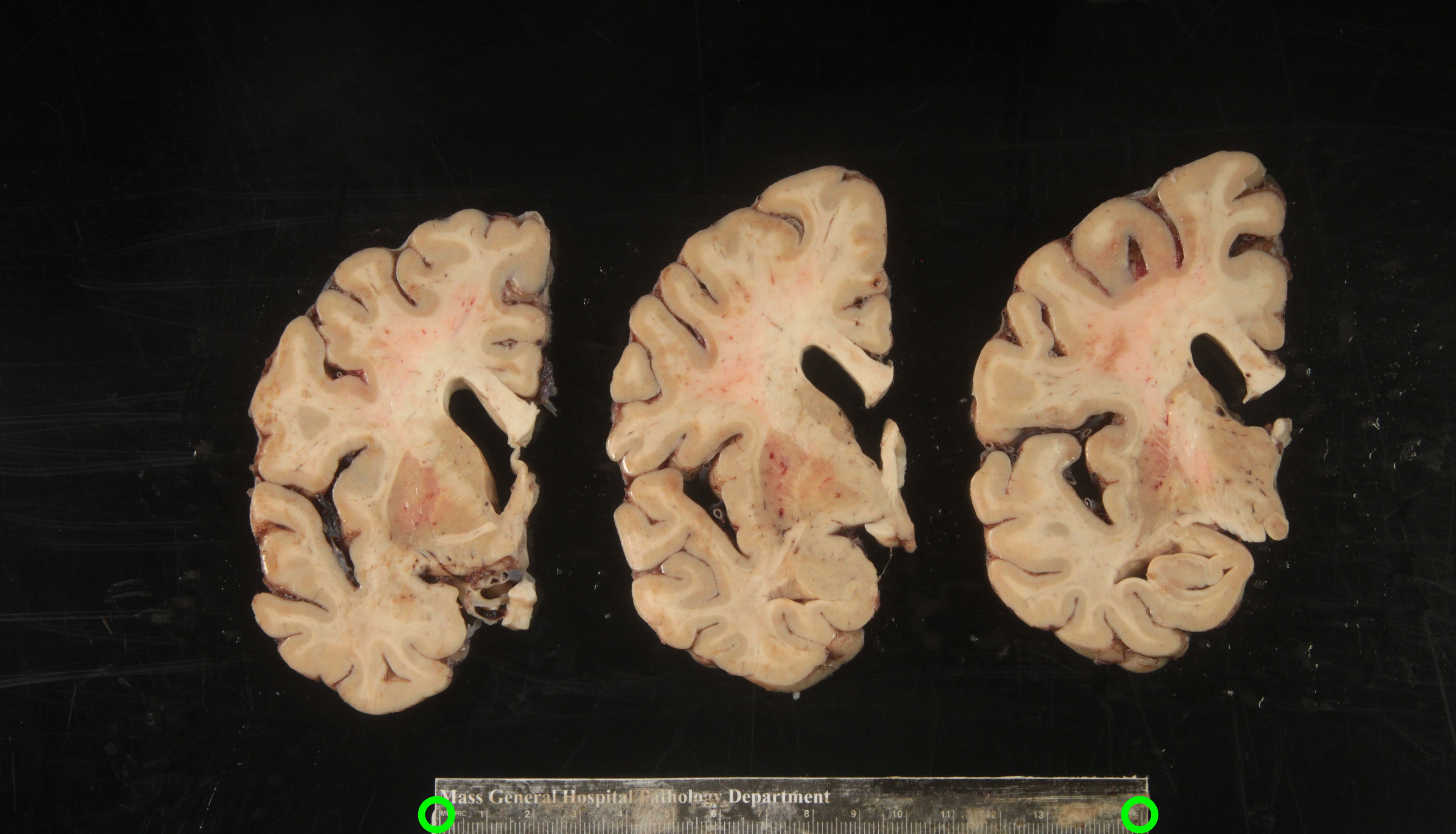
Tip: It is better to use landmarks that are as far apart as possible, as the relative error when manually setting the reference in pixels per millimeter decreases with greater distances.
A more effective setup involves four landmarks placed the corners of a rectangle of known dimensions. This enables us to correct for both pixel size and perspective. In the example below, we can easily tell that the 4 points marked on the grid define a rectangle of dimensions 170x200 mm.
The optimal scenario is to have 4 points defined by fiducial markers with highly salient features. This enables our software to automatically recognize the fiducials, which minimizes human interaction, reducing time and maximizing reproducibility. We strongly recommend that you print these set fiducials and place them on the corners of the board.
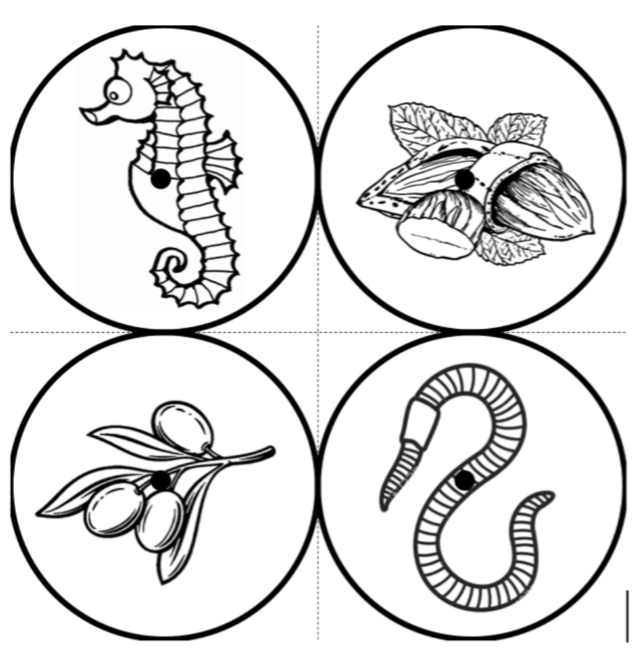
Tip: For best results, affix these fiducials to a small piece of rubber/wood/plastic that lifts them X mm above the board, where X is the thickness of your typical brain slice. Lifting the fiducial minimizes error due to the surface of the brain slice not being at the same distance as the plane of the board surface, but rather a few millimeters above it.
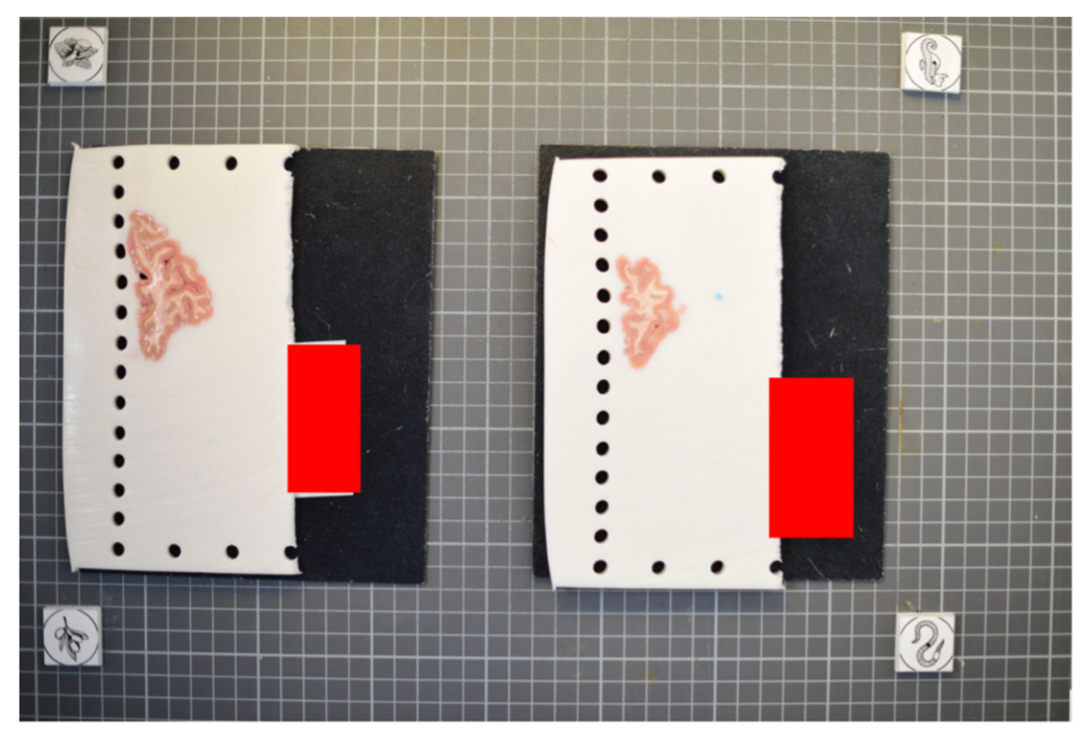
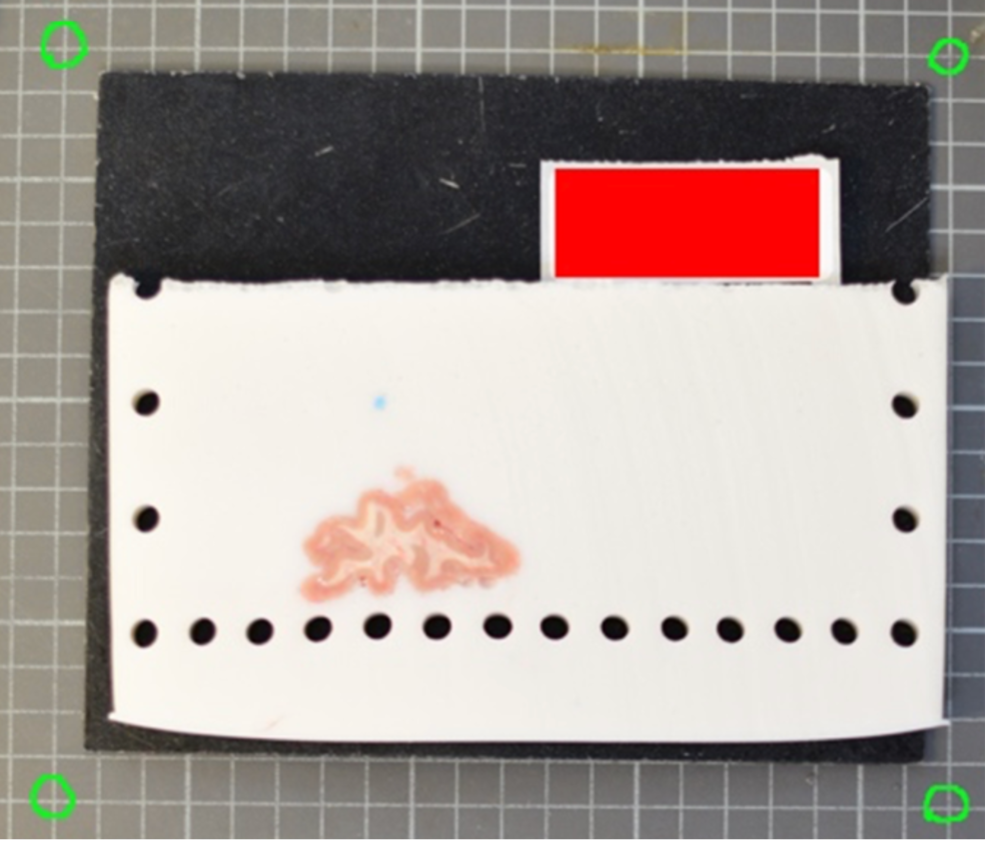
The fiducial form the four corners of our corrected image; hence all tissue should be within the rectangle created from the four fiducial corners. The following image shows slab photos where the fiducials were not placed sufficiently apart.
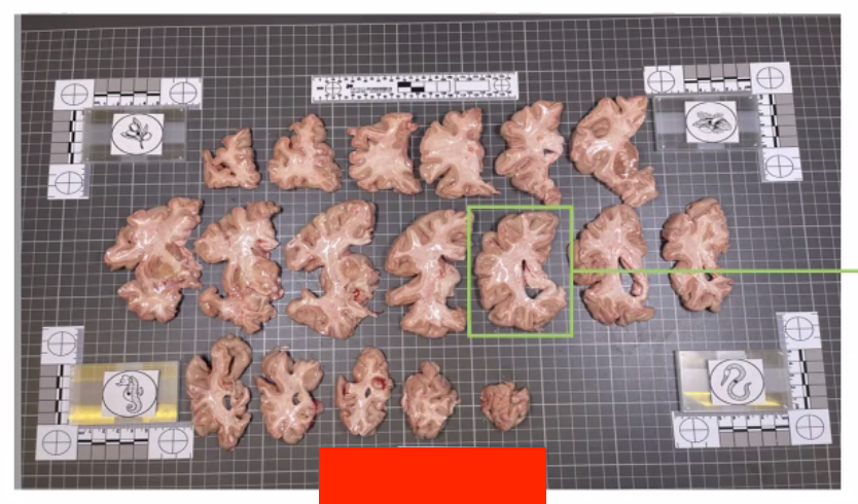
By drawing a rectangle with all fiducial markers, it is clear that much of the tissue lies outside of the pixel-corrected region.
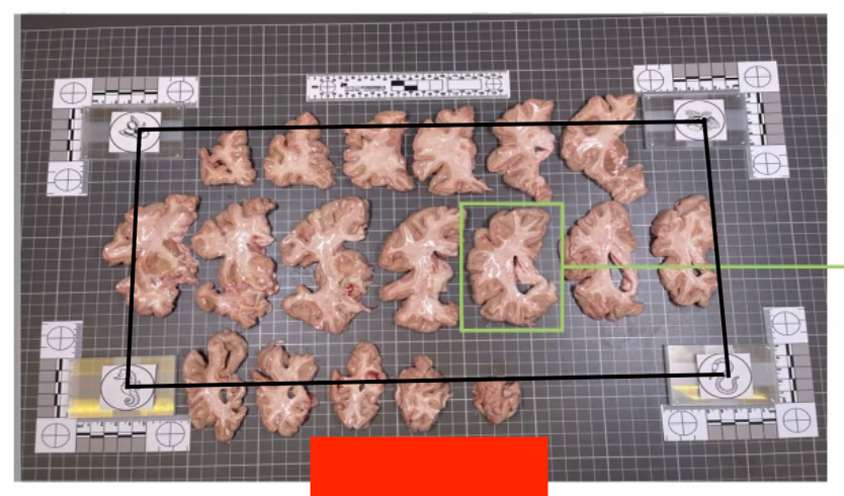
In summary, here is an example of what an optimal photographic setup would look like, including the uniform, high-contrast background and provided fiducials located at known distances, and consistent lighting on all slabs.
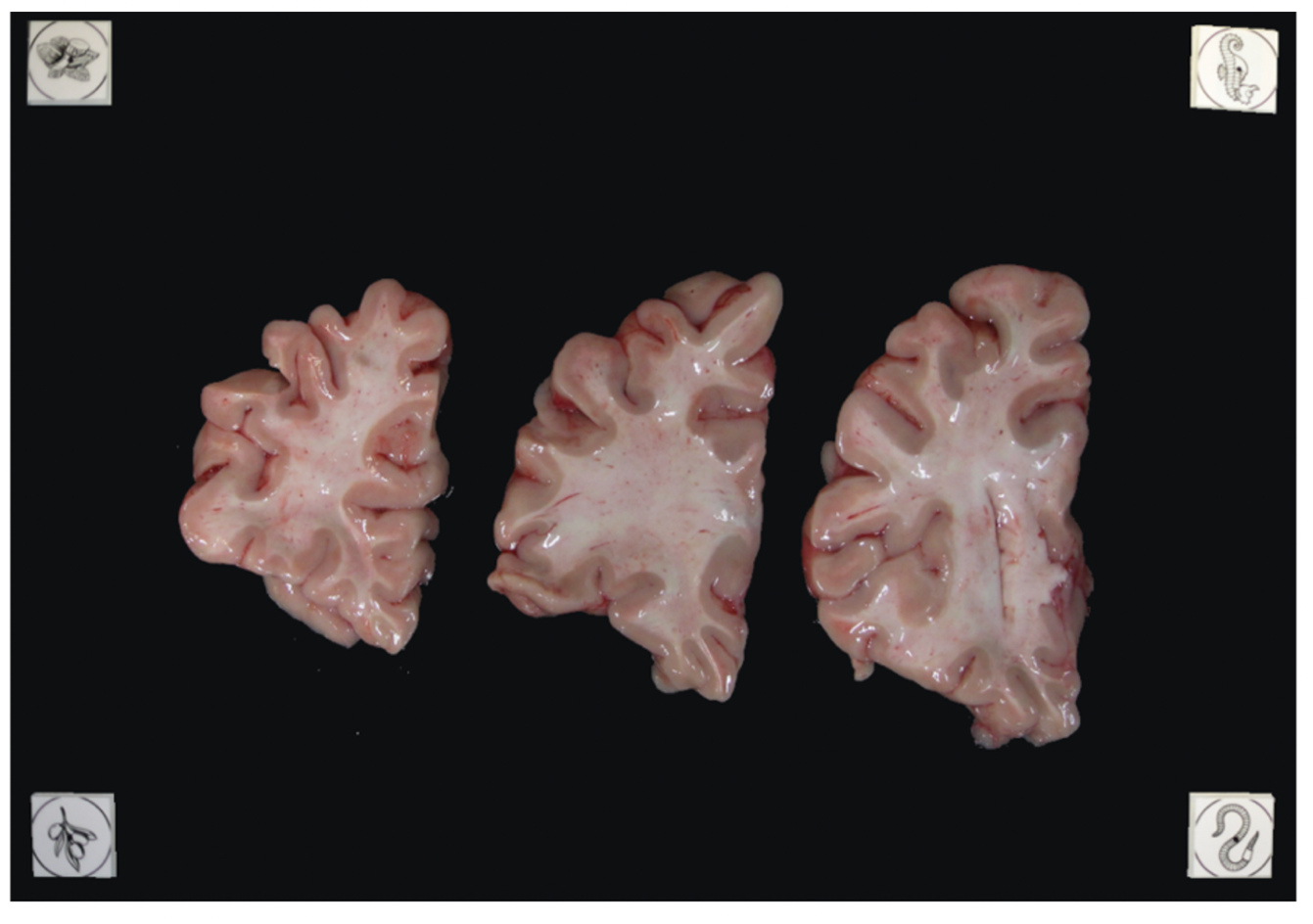
Tip: It does not matter if slabs are not presented on a grid, as long as the distance between the fiducials is known. The software will draw digital rulers for your images later pixel-correction.
Part 2: Prerprocessing Photographs with the Dissection Photo App
The dissection photo app has five principal windows for each subject: Add photos, Correction, Segmentation, Connected components and Reconstruction. The step bar at the top of the window shows which step is being done, users can click any backtrack by clicking any of the previous steps at any time, alternatively the house icon to return to the Projects screen with a summary of all reconstructions done or in process. For each project work is saved as you go, so the can can be closed at any time to later pick up where you left off.
Before continuing, make sure the development version of Freesurfer is properly sourced, you have downloaded the model weights, and have set the NNUNET_MODEL_DIR as an environment variable pointing to the segmentation model before continuing with the tutorial. To start the application use command dissection_photo_2
Projects Page
Each specimen corresponds to a project: a folder which will be populated with the outputs from all steps. The project home contains a summary of all projects and their progress.

Projects Home screen
To start processing a new batch of dissection photographs click on New Project.
- Open a project to continue where you left off or backtrack to any completed steps.
Tip For advanced users, the gear icon can be used to change which resources are used by the automatic segmentation model, covered in automatic segmentation settings.
After naming a project you will be prompted to save a folder of the same name. It is in this folder that the outputs of all steps will be stored.
Directory Structure
For each project the following directory structure will be populated with all outputs.
Folder / file |
Contents |
photos/ |
Copy of the original photographs |
deformed/ |
Pixel-corrected photos |
mask/ |
Binary tissue masks |
connected_components/ |
Label maps per slab |
recon/ |
The 3D-photo reconstruction |
Step 1. Add photographs
Drag and drop a folder containing dissection photographs, or click Upload Images.
- Select the photographs that should be used for the reconstruction. This can be used to omit repeat photographs, dissection photographs of cerebellar tissue, or gross photographs done prior to slabbing. Double click on any image in the grid for a larger preview.
If you have or would like to create a calibration file to automate pixel correction, click on + Add a calibration file (optional) and follow steps in Making a Calibration File and then Prospective Correction.
Click Get Started.
Optional: Making a calibration file
This step only needs to be done once, as long as markers are not moved. For more information on proper usage refer to the ** section in this wiki page.
On the Add photos menu, click + Add a calibration file (optional), to expand the calibration file box, and click on Create One under the Upload Calibration button.
On the next menu, If you have not printed out the fiducial markers they can be downloaded for printing out by clicking the Download Market Printout button.
- Next, place markers at a known distance in a rectangle formation on the photography table. Be sure that opposite sides of the rectangle created by the fiducial markers is parallel - inacurate marker placement can lead to incorrect perspective correction.
- Upload the photograph of the empty dissection table with just the markers present, and enter width and height of the fiducial box.
- For each of the markers, click its centre and outer cirlce. Options to zoom, pan, redo/undo, can help fix mistakes and make the best calibration possible.
Click Save Calibration and save your calibration file in a easy to access location.
Tip Because of slight lens distortion, the overlayed labels for the outer circle of the markers might not always align throughout the whole circunference. This is not an issue.
|
|


Step 2: Pixel Correction
This step corrects all photograph to be at the same pixel size. Additionally can correct for perspective when using a calibration, or doing manual correction in 4-point mode.
Prospective Correction (Using fiducial markers and calibration file)
- Every photo is corrected automatically as soon as Correction opens. The markers are found in each photo separately, so it does not matter if the camera moved between photos.
Check each photo: Original shows the photo as taken, with the marker centres that were found; Corrected shows the result. A green tick in the strip at the bottom marks each corrected photo.
If the markers cannot be found in a photo, the app says which ones. On each of them, click the centres of the four markers on the Original view and click Correct this photo.
|
|


Retrospective Correction (Using a spatial reference within the photographs)
Choose how many points you can mark, enter the real distances, and place the points on each photo:
Mode |
You need |
Corrects |
2 Point |
One ruler or other known distance (entered as Ruler width (mm)) |
Pixel size only |
3 Point |
Three corners of a rectangle, e.g. two rulers at right angles |
Pixel size, approximate perspective |
4 Point |
Four corners of a rectangle |
Pixel size and perspective |
Ctrl + left click places a point; once all are placed, Ctrl + click moves the nearest one. Clear points starts again.
Click Correct this photo (Ctrl + W also moves on to the next photo). Place points on the Original view; the Corrected view is for checking.
When every photo is corrected, make sure to click Continue to Segmentation.
Step 3: Binary Segmentation
While you were correcting, the app was already finding the tissue in each corrected photo. Here you check each mask and fix it.
|
|


Brush (Q) adds to the mask, Eraser (W) removes from it, and Fill (E) fills an area. Apply the tool with Ctrl + left drag; set the sizes with the sliders.
Mask opacity changes how see-through the mask is; Show mask (Ctrl + T) hides and shows it. Undo and redo with Ctrl + Z and Ctrl + Shift + Z.
- Leave out everything that is not slab tissue: the background, labels, and fragments that do not belong to a slab.
IMPORTANT: the cortical surface should not be part of the masks, so the first slab (if photographed from the anterior side) or the last slab (if photographed from the posterior side) should NOT be included.
You need to look at every photo's mask before Continue to Connected Components becomes available; a note at the top says which ones are left.
Automatic Segmentation Settings
Open them from the gear on the Projects screen. Changes apply the next time photos are segmented.

Automatic segmentation settings.
Setting |
What it does |
Automatic segmentation (On / Off) |
Off: every mask is drawn by hand from scratch. Only turn it off if the automatic segmentation fails on your photos. |
Model folds |
Automatic: 5 folds on a GPU, 1 on the CPU. Five folds are steadier but 4-5x slower. |
Run on |
Automatic uses the GPU if there is one; or choose GPU or CPU. |
Maximum threads |
The most processor threads segmentation may use. If the computer has fewer, it uses all it has. |
Model folder |
The folder of the segmentation model (nnUNetTrainer__nnUNetPlans__2d). |
Step 4: Slab Connected Components
Here you tell the app which pieces of tissue belong to which slab.
- In each photo, draw a box inside each slab (Ctrl + left drag), always in the same order: anterior to posterior, or posterior to anterior. The slab is coloured as soon as its box is drawn.
- Keep boxes small and inside the tissue, and do not let them overlap. If a slab is in several pieces (e.g. a detached temporal lobe), make sure its box touches every piece.
Click Save components (Ctrl + W also moves on to the next photo); moving to another photo saves it too. A green tick marks saved photos. If you change a saved photo, its tick goes away until you save it again.
Undo and redo with Ctrl + Z and Ctrl + Shift + Z. Slab overlay changes how strongly the slabs are colored.
|
|


Step 5: Photo Reconstruction
Please see our separate page on the command mri_3d_photo_recon. The last step runs mri_3d_photo_recon on the images of the project. While the reconstruction is running in the background the user can continue processing images of other cases.
Output folder: the folder inside the project for the results (default recon).
Slabs: the hemisphere, the slab thickness in mm, which face of the slabs was photographed (anterior or posterior), the order the photos were taken in, and whether the tissue is fixed or fresh.
Reference: none (the MNI atlas), a surface mesh (.stl), an MRI scan, or both. See Which reference should I use?
- Optionally: the number of threads, a graphics card, and the advanced settings. Empty expert weights use the command's own defaults, shown in grey.
Click Run Reconstruction.
The command being run is shown on the right (Copy command copies it, for example to run it on another computer), and its output appears in the log below it. The reconstruction keeps running if you switch to another project; the Projects screen shows its progress.

The Reconstruction step, with the command that will be run.
Part 3: Downstream Tasks
Photo-Synthseg Segmentation
The 3D reconstructed stacks can be segmented with SynthSeg using the flag --photo. Please see the wiki page for SynthSeg for further information.
|
|
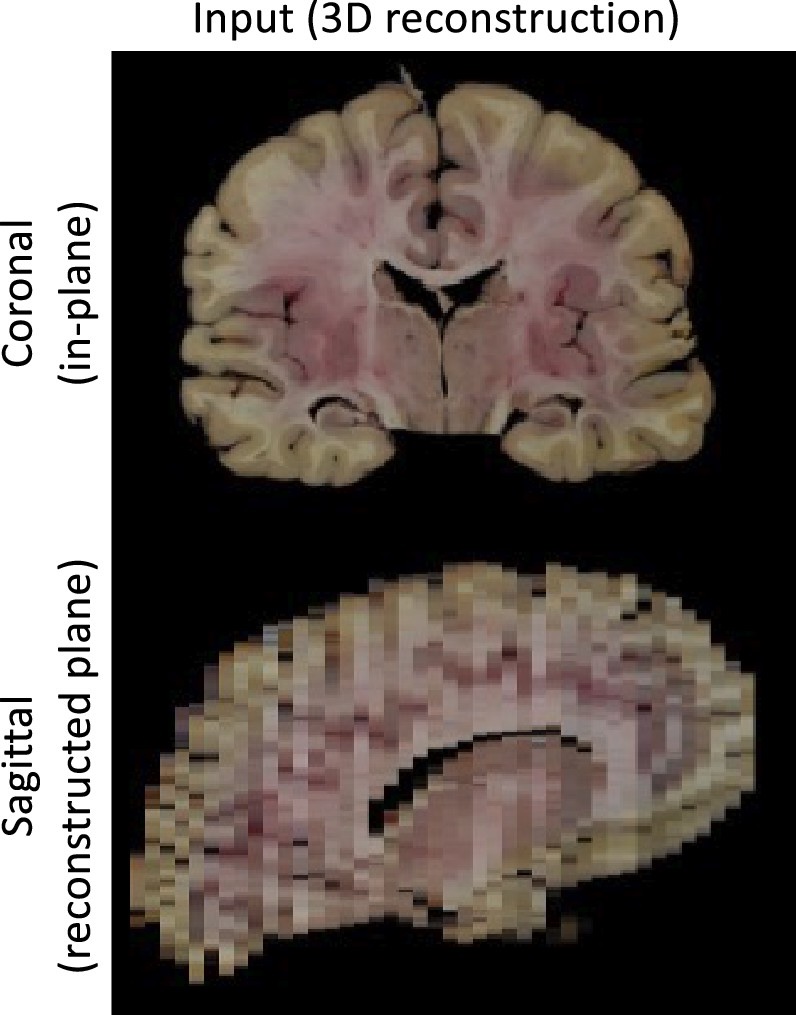
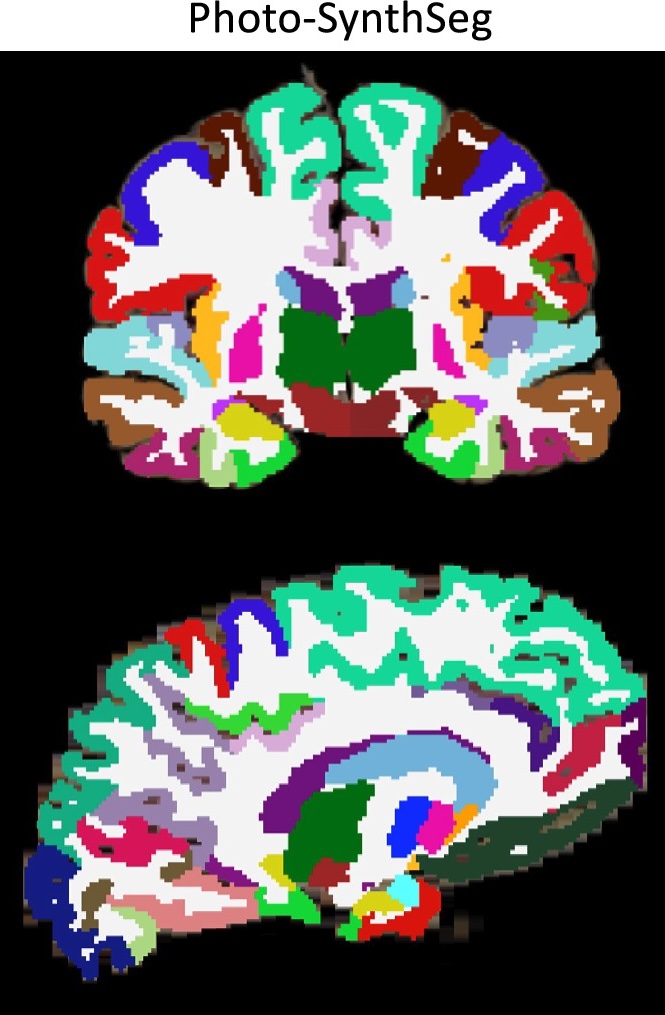
Example for running SynthSeg on a Left Hemisphere
mri_synthseg \
--i ./recon/photo_recon.mgz \
--o ./recon/photo_recon_synthseg.mgz \
--photo left \
--parc