
|
Size: 78
Comment:
|
Size: 2351
Comment: wrong spelling
|
| Deletions are marked like this. | Additions are marked like this. |
| Line 1: | Line 1: |
| = Instructions Thermatake Docking Station = | ## page was renamed from ThermatakeDockingStation = Instructions - Thermaltake Docking Station = |
| Line 4: | Line 5: |
The Thermaltake docking station is used to read/write standard '''internal''' SATA disk drives. It is connected to the machine andromeda through a USB 3.0 connection to a USB 3.0 card within andromeda, allowing it to transfer at up to 700MB/s. == To use the device with a hard disk that is already formatted == * Make sure the Thermaltake is '''off''' (blue LEDs on power button not lit) * Insert the drive into one of the two slots * Turn on power to Thermaltake * In Centos, the drive will appear as an icon on your desktop, and the contents can be accessed at the location /media/<somename> * To remove the drive: * right-click on the desktop icon that was opened for the drive, and select 'Safely remove drive' * wait for the desktop icon to disappear * turn off power to Thermaltake * wait a couple seconds (for hard disk to spin-down) * push drive ejector button == To format a new hard disk (prior to using to write data) == * Make sure the Thermaltake is '''off''' (blue LEDs on power button not lit) * Insert the drive into one of the two slots (or insert two drives if you want to format two at one time) * Turn on power to Thermaltake. An icon will '''not''' appear and Centos will not give any overt indication that it detected the disk. * Open 'Disk Utility', which is found in the Centos menu under System Tools. * Under 'Peripheral Devices', you should see your hard disk (ie. 2.0 TB Hard Disk), click on that drive * Click on 'Format Drive' and click 'Format' (leave default scheme as 'Master Boot Record') * Under the Volumes section, click on 'Create Partition'. Use type 'Ext4', give it a Name if you want, and leave the checkbox 'Take ownership of filesystem' ticked. '''This operation will take several minutes.''' You should see a spinning circle thingy in the blue Volumes box. * When the format is done, you can click on 'Mount Volume', and a desktop icon will appear for it (with the name you gave it) and it can be accessed at the location /media/<nameyougaveit> * To remove the drive, follow instructions from above. * It is possible to format two drives at the same time (just don't power-down the station until both are done) |
Instructions - Thermaltake Docking Station
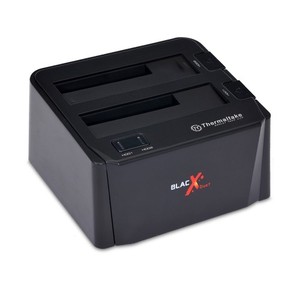
The Thermaltake docking station is used to read/write standard internal SATA disk drives. It is connected to the machine andromeda through a USB 3.0 connection to a USB 3.0 card within andromeda, allowing it to transfer at up to 700MB/s.
To use the device with a hard disk that is already formatted
Make sure the Thermaltake is off (blue LEDs on power button not lit)
- Insert the drive into one of the two slots
- Turn on power to Thermaltake
In Centos, the drive will appear as an icon on your desktop, and the contents can be accessed at the location /media/<somename>
- To remove the drive:
- right-click on the desktop icon that was opened for the drive, and select 'Safely remove drive'
- wait for the desktop icon to disappear
- turn off power to Thermaltake
- wait a couple seconds (for hard disk to spin-down)
- push drive ejector button
To format a new hard disk (prior to using to write data)
Make sure the Thermaltake is off (blue LEDs on power button not lit)
- Insert the drive into one of the two slots (or insert two drives if you want to format two at one time)
Turn on power to Thermaltake. An icon will not appear and Centos will not give any overt indication that it detected the disk.
- Open 'Disk Utility', which is found in the Centos menu under System Tools.
- Under 'Peripheral Devices', you should see your hard disk (ie. 2.0 TB Hard Disk), click on that drive
- Click on 'Format Drive' and click 'Format' (leave default scheme as 'Master Boot Record')
Under the Volumes section, click on 'Create Partition'. Use type 'Ext4', give it a Name if you want, and leave the checkbox 'Take ownership of filesystem' ticked. This operation will take several minutes. You should see a spinning circle thingy in the blue Volumes box.
When the format is done, you can click on 'Mount Volume', and a desktop icon will appear for it (with the name you gave it) and it can be accessed at the location /media/<nameyougaveit>
- To remove the drive, follow instructions from above.
- It is possible to format two drives at the same time (just don't power-down the station until both are done)