
|
Size: 4216
Comment:
|
Size: 3758
Comment:
|
| Deletions are marked like this. | Additions are marked like this. |
| Line 1: | Line 1: |
| = THIS PAGE HAS BEEN MOVED TO SHAREPOINT! = Please refer to this site/make edits here for the most updated information: https://partnershealthcare.sharepoint.com/sites/LCN/SitePages/ADNI.aspx ---- <<BR>> <<BR>> <<BR>> |
|
| Line 2: | Line 9: |
= ADNI Download Notes = |
|
| Line 5: | Line 14: |
| cd /autofs/cluster/con_002/users/ADNI | cd /autofs/space/mreuter/ADNI |
| Line 13: | Line 22: |
'''Previous Download Date: 6/25/18''' |
|
| Line 14: | Line 25: |
| = T2/PD data = * on the LONI ADNI page, click on Search->Advanced Search * for 'month 0' scans, select both Screening and Baseline, or select one of the other months (for longitudinal scans) * enter '*PD*T2*' in the MRI Series Description text box * select PD and T2 weighting * select Image count All * click the SEARCH button * now you will need to save the matches, to do this you will need to select each scan on every page of the results (there could be 20 or more pages of results, because the stupid interface seems to display only 20 at a time). click the 'Click here to select all series on the page' checkbox, but then uncheck duplicate scans for the same subject. * before going to the next page, click Add to Collection. if this is the first page of the search, then create a new collection name (say, 'Month_6_PDT2'). Click Add. * repeat the 'select all', 'unselect duplicates', 'add to collection' step for each page of the search results (warning! this is mind numbingly boring, tedious and time consuming!) * once the image collection is done, click on Download->Image Collections, in My Collections, find the collection you just created and select 'Now Download' * select the 'All' checkbox * select the 'Nifti' radio button * click DOWNLOAD, this brings-up a java box which then prompts for a directory. once that is selected, then it will being downloading, which could take days.... * by default, the java thing puts the files in a directory named ADNI... rename that to something appropriate, in this example, to "Month_6_PDT2" * within this dir, the .xml files contain info on the PD and T2 files, and the name itself contains unique identifying info for each file, so a script is necessary to extract all this and mri_convert the nifti file. that script looks like this: {{{ #\! /bin/tcsh -ef |
== Downloading Scans == |
| Line 33: | Line 27: |
| # the adni root dir set ADNI=(/autofs/cluster/con_002/users/ADNI) |
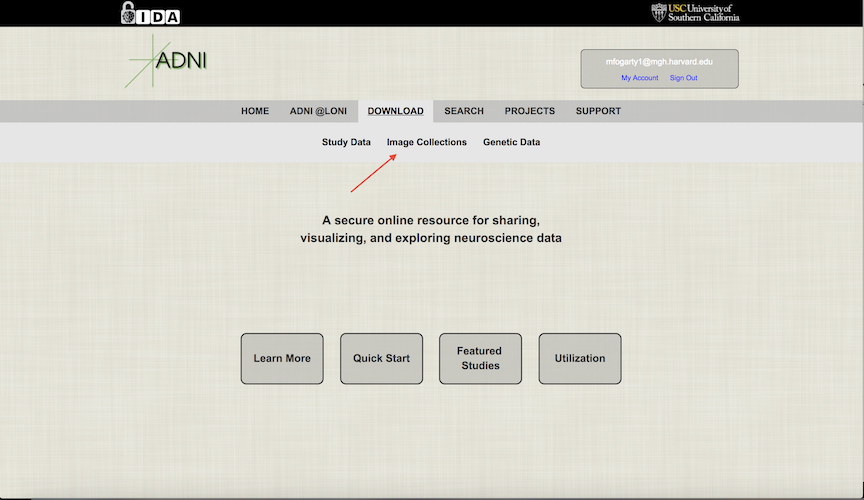
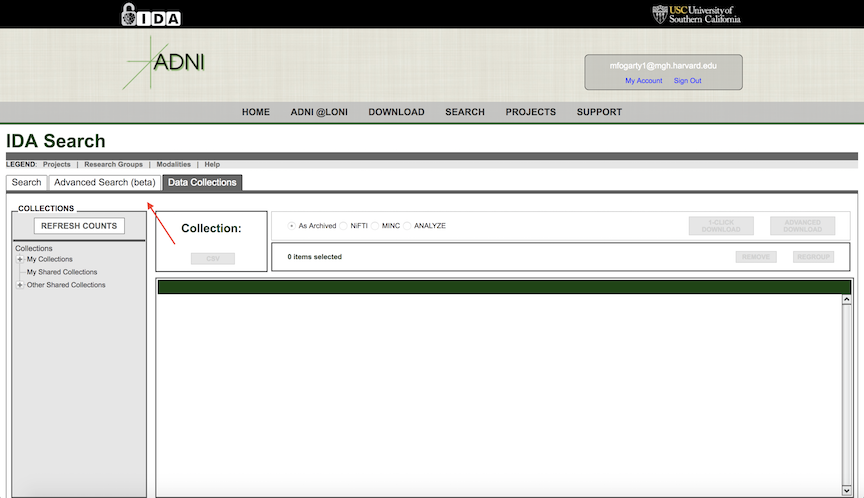
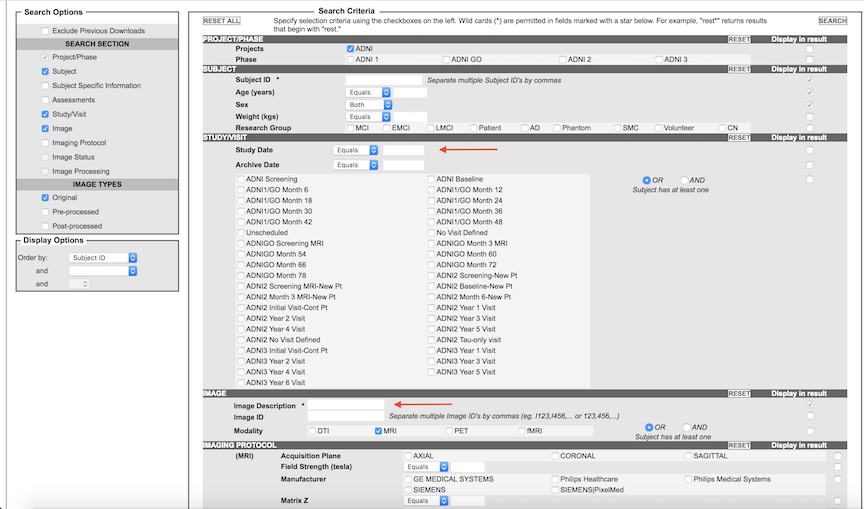
* Go the the following website to access the data: http://adni.loni.usc.edu/data-samples/access-data/ * If you do not have an account, you can apply for access here: https://ida.loni.usc.edu/collaboration/access/appLicense.jsp NOTE: It takes approximately 2-3 weeks to gain access to the data * Once you are logged into the website, on the top bar select Download -> Image Collections. {{attachment:ADNI_imageCollection.png}} * Once on the Image Collections page, select Advanced Search. This will bring you to the location where you can select parameters for the data you wish to download. {{attachment:ADNI_advancedDownload.png}} * On the Advanced Search tab, there a few parameters that were previously used to download the data. First, for the Study Date, click the dropdown and change it to "Between", then enter the date of the previous data download in the start date, and the current date in the end date. Make sure to record the current date so we know for future downloads. Next, for the Image Description, you will need to search twice using different criteria for this field. Search once using “N3m” and again using “scaled”. Finally, under Image Protocol -> Weighting, check the box next to "T1". {{attachment:ADNI_advancedDownload2.png}} * Once the search results load, select the scans you wish to download and add them to a new image collection. * After you have all the scans in the image collection, download the csv file associated with the image collection. This file is important because it contains information regarding the image ID, subject ID, group, age, and more. * Finally, select the images from the collection you wish to download and click the "Advanced Download" option. NOTE: You will be provided the option to download the zip file as a single file, five files, or ten files. Select the download that is appropriate to the file size and download time. I had the best luck downloading as five zip files. Also, check to make sure you have the necessary amount of space in your downloads directory. These files are quite large and the download will stop when the directory is full. * Move the zip files from your downloads directory to the appropriate ADNI directory * Unzip the files. NOTE: When unzipping the files, a new "ADNI" directory will be created in the location you are unzipping to. This "ADNI" directory contains the subject IDs as directory names and within these directories are the scan files associated with the subject ID. |
| Line 36: | Line 42: |
| # the month we're working with (be sure to update this var!!!!!!) set m=(_m6) foreach f (`ls *.xml`) # find out which image type this .xml file describes (PD or T2) set weighting=(`grep Weighting $f | awk 'BEGIN { FS = "[<>]" } ; {printf $3}'`) # chop-off .xml extension set ff=(`basename $f .xml`) # extract subject name set subjid=(`echo $ff | awk 'BEGIN { FS = "_" } ; {printf $4}'`) # extract unique identifier for this file set uid=(`echo $ff | awk 'BEGIN { FS = "_I" } ; {printf $2}'`) # convert file, storing into main adni dir set niifile=(`find | grep "_S_${subjid}" | grep "_I${uid}" | grep "\.nii"`) set origdir=($ADNI/${subjid}${m}/mri/orig) if ( -e $origdir) then mri_convert $niifile $origdir/${weighting}.mgz endif end }}} * '''In this script, be sure to update the 'm' var to the proper month if reusing this script on a different month!''' * Next, a 'subjects' script needs to be created to set the SUBJECTS var with the names of the subjects which have PD and T2 files for this month (the files we just copied). To do that: {{{ cd /autofs/cluster/con_002/users/ADNI echo "#! /bin/tcsh -ef" > scripts/PD_T2_Month_6_subjs echo "set SUBJECTS=(\\" >> scripts/PD_T2_Month_6_subjs foreach s (`ls -d ????_m6`) if ( -e $s/mri/orig/PD.mgz) then if ( -e $s/mri/orig/T2.mgz) then echo $s echo "$s \\" >> scripts/PD_T2_Month_6_subjs endif endif end echo ")" >> scripts/PD_T2_Month_6_subjs echo "echo <dollar>SUBJECTS" >> scripts/PD_T2_Month_6_subjs echo "" >> scripts/PD_T2_Month_6_subjs echo "echo <dollar>#SUBJECTS month_6 subjects with PD and T2 scans" >> scripts/PD_T2_Month_6_subjs }}} * '''Be sure to update the month in this script!''' Also, you will need edit the script (PD_T2_Month_X_subjs) to replace <dollar> with $ before SUBJECTS, since its not possible to echo a dollar. ---- |
== Downloading Study Data == It's also important to periodically check the study data to ensure that we have all the relevant data. To download study data, click the "Download" section on the top bar and select "Study Data". This will bring you to a page that contains all of the important study data for ADNI. The most important sections are enrollment, demographics, study info, and imaging. In these sections you'll find all the relevant demographics information and information regarding the scanning parameters. |
THIS PAGE HAS BEEN MOVED TO SHAREPOINT!
Please refer to this site/make edits here for the most updated information: https://partnershealthcare.sharepoint.com/sites/LCN/SitePages/ADNI.aspx
See also AdniReconNotes
ADNI Download Notes
Notes on how to download ADNI subject data and incorporate into our local copy, which is found here:
cd /autofs/space/mreuter/ADNI
The main ADNI site is here: http://adni.loni.ucla.edu/
It is necessary to obtain an account with them in order to download data from the LONI site, which is here: https://ida.loni.ucla.edu/login.jsp?project=ADNI
Previous Download Date: 6/25/18
Downloading Scans
Go the the following website to access the data: http://adni.loni.usc.edu/data-samples/access-data/
If you do not have an account, you can apply for access here: https://ida.loni.usc.edu/collaboration/access/appLicense.jsp
- NOTE: It takes approximately 2-3 weeks to gain access to the data
Once you are logged into the website, on the top bar select Download -> Image Collections.
- Once on the Image Collections page, select Advanced Search. This will bring you to the location where you can select parameters for the data you wish to download.
On the Advanced Search tab, there a few parameters that were previously used to download the data. First, for the Study Date, click the dropdown and change it to "Between", then enter the date of the previous data download in the start date, and the current date in the end date. Make sure to record the current date so we know for future downloads. Next, for the Image Description, you will need to search twice using different criteria for this field. Search once using “N3m” and again using “scaled”. Finally, under Image Protocol -> Weighting, check the box next to "T1".
- Once the search results load, select the scans you wish to download and add them to a new image collection.
- After you have all the scans in the image collection, download the csv file associated with the image collection. This file is important because it contains information regarding the image ID, subject ID, group, age, and more.
- Finally, select the images from the collection you wish to download and click the "Advanced Download" option. NOTE: You will be provided the option to download the zip file as a single file, five files, or ten files. Select the download that is appropriate to the file size and download time. I had the best luck downloading as five zip files. Also, check to make sure you have the necessary amount of space in your downloads directory. These files are quite large and the download will stop when the directory is full.
- Move the zip files from your downloads directory to the appropriate ADNI directory
- Unzip the files. NOTE: When unzipping the files, a new "ADNI" directory will be created in the location you are unzipping to. This "ADNI" directory contains the subject IDs as directory names and within these directories are the scan files associated with the subject ID.
Downloading Study Data
It's also important to periodically check the study data to ensure that we have all the relevant data. To download study data, click the "Download" section on the top bar and select "Study Data". This will bring you to a page that contains all of the important study data for ADNI. The most important sections are enrollment, demographics, study info, and imaging. In these sections you'll find all the relevant demographics information and information regarding the scanning parameters.