|
Size: 1025
Comment:
|
Size: 1786
Comment:
|
| Deletions are marked like this. | Additions are marked like this. |
| Line 15: | Line 15: |
'''Previous Download Date: 6/25/18''' |
|
| Line 21: | Line 23: |
| * Once you are logged into the website, on the top bar select Download -> Image Collections. Once on the Image Collections page, select Advanced Search. This will bring you to the location where you can select parameters for the data you wish to download. | * Once you are logged into the website, on the top bar select Download -> Image Collections. {{attachment:ADNI_imageCollection.png}} * Once on the Image Collections page, select Advanced Search. This will bring you to the location where you can select parameters for the data you wish to download. {{attachment:ADNI_advancedDownload.png}} * On the Advanced Search tab, there a few parameters that were previously used to download the data. First, for the Study Date, click the dropdown and change it to "Between", then enter the date of the previous data download in the start date, and the current date in the end date. Make sure to record the current date so we know for future downloads. Next, for the Image Description, you will need to search twice using different criteria for this field. Search once using “N3m” and again using “scaled”. Finally, under Image Protocol -> Weighting, check the box next to "T1". {{attachment:ADNI_advancedDownload2.png}} |
See also AdniReconNotes
ADNI Download Notes
Notes on how to download ADNI subject data and incorporate into our local copy, which is found here:
cd /autofs/space/mreuter/ADNI
The main ADNI site is here: http://adni.loni.ucla.edu/
It is necessary to obtain an account with them in order to download data from the LONI site, which is here: https://ida.loni.ucla.edu/login.jsp?project=ADNI
Previous Download Date: 6/25/18
Steps for Downloading Data
Go the the following website to access the data: http://adni.loni.usc.edu/data-samples/access-data/
If you do not have an account, you can apply for access here: https://ida.loni.usc.edu/collaboration/access/appLicense.jsp
- NOTE: It takes approximately 2-3 weeks to gain access to the data
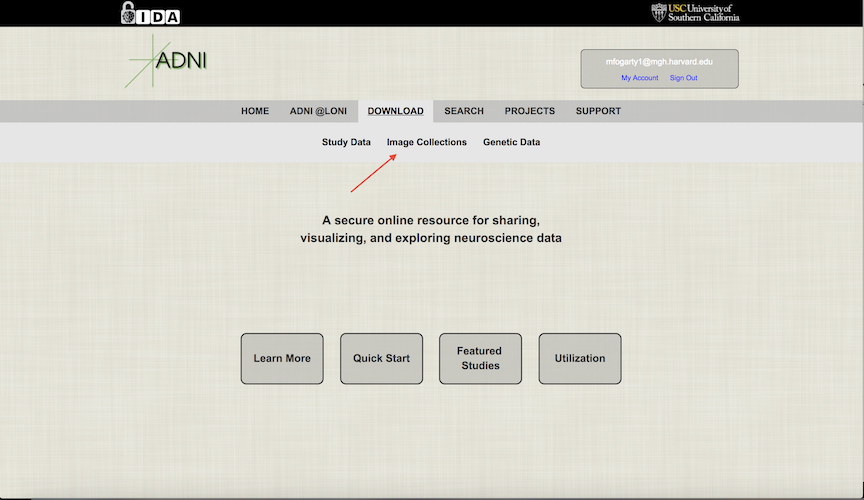
Once you are logged into the website, on the top bar select Download -> Image Collections.
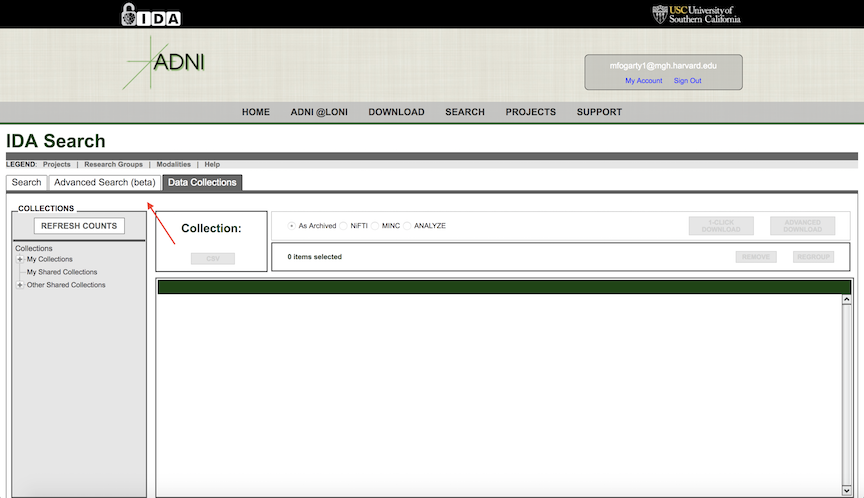
- Once on the Image Collections page, select Advanced Search. This will bring you to the location where you can select parameters for the data you wish to download.
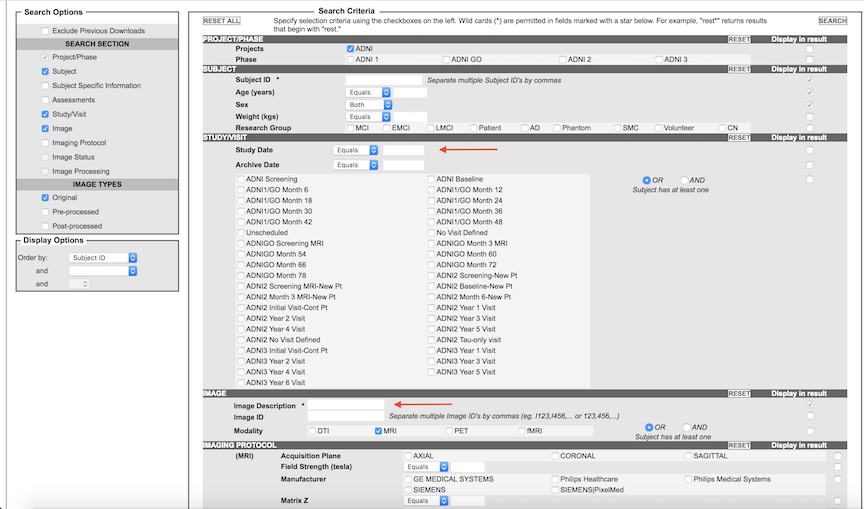
On the Advanced Search tab, there a few parameters that were previously used to download the data. First, for the Study Date, click the dropdown and change it to "Between", then enter the date of the previous data download in the start date, and the current date in the end date. Make sure to record the current date so we know for future downloads. Next, for the Image Description, you will need to search twice using different criteria for this field. Search once using “N3m” and again using “scaled”. Finally, under Image Protocol -> Weighting, check the box next to "T1".