
|
Size: 5943
Comment:
|
Size: 7307
Comment:
|
| Deletions are marked like this. | Additions are marked like this. |
| Line 1: | Line 1: |
| ## page was renamed from QuickInstall = FreeSurfer Download and Install = == Internal FreeSurfer == People within the MGH/MIT/HMS Martinos Center should use the [[InternalFreeSurferDistributions|Internal FreeSurfer Distributions]] because !FreeSurfer is already installed on your system. |
|
| Line 7: | Line 14: |
| RAM: 4GB at least (8GB recommended)<<BR>> Graphics card: 3D with its own graphics memory & accelerated OpenGL drivers<<BR>> Install's Disk space usage: 8.5GB<<BR>> Typical subject size: 370MB<<BR>> |
RAM: 8GB recommended<<BR>> Graphics card: 3D graphics card with its own graphics memory & accelerated OpenGL drivers<<BR>> Size of installation package: 8.5GB<<BR>> Typical size of a processed subject: 370MB<<BR>> |
| Line 15: | Line 22: |
| '''Important:''' It is essential to process all your subjects with the same version of !FreeSurfer, on the same OS platform and vendor, and to be completely safe, even the same version of the OS. | '''Freesurfer 5.3 stable release''' (ReleaseNotes) |
| Line 17: | Line 24: |
| == Freesurfer 5.3 stable release == Please refer to the ReleaseNotes page for per-release information. |
'''Important Note:''' It is essential to process all your subjects with the same version of !FreeSurfer, on the same OS platform and vendor, and to be completely safe, even the same version of the OS. '''Important Note for Mac OS X users:''' Mac OS X platform requires the installation of XQuartz for freesurfer to work properly. OSX versions '''10.6 - 10.9''' require [[http://xquartz.macosforge.org/downloads/SL/XQuartz-2.7.5.dmg|XQuartz 2.7.5]]. OSX versions '''10.10''' and higher require [[http://xquartz.macosforge.org/downloads/SL/XQuartz-2.7.6.dmg|XQuartz 2.7.6]]. |
| Line 28: | Line 36: |
| '''Development Version:''' Daily builds of !FreeSurfer can be downloaded from [[ftp://surfer.nmr.mgh.harvard.edu/pub/dist/freesurfer/dev|here]]. '''Previous Releases:''' Old releases of !FreeSurfer can be downloaded from [[ftp://surfer.nmr.mgh.harvard.edu/pub/dist/freesurfer|here]]. |
|
| Line 29: | Line 41: |
| Please select the instructions for the type you downloaded: * [[LinuxInstall|Linux Installation]] |
|
| Line 32: | Line 42: |
| * [[MacOsInstall|Mac OS X Installation]] | '''Linux:''' Installing !FreeSurfer on Linux systems involves simply extracting the contents of the .tar.gz file somewhere on your machine. Installing into the directory {{{/usr/local}}} is recommended. For example: |
| Line 34: | Line 44: |
| * [[Installation/FreeSurferVirtualImage|FreeSurfer Virtual Image Installation using VirtualBox]] == Set Up & Configuration == Set the default shell to be permanently switched to tcsh by typing the following in a terminal window and then pressing enter: |
|
| Line 39: | Line 45: |
| chsh -s /bin/tcsh | $> tar -C /usr/local -xzvf freesurfer-Linux-centos6_x86_64-stable-pub-v5.3.0.tar.gz |
| Line 42: | Line 48: |
| Set up your shell's configuration file ('''.tcshrc''') so that !FreeSurfer is sourced every time you open a new terminal window. You can do this by adding the two commands in the box below to any part of the .tcshrc file. Use pico or any other text editor to create a .tcshrc file or to open the .tcshrc file and make this change (i.e. type "pico .tcshrc" on the command-line). | '''Mac:''' Installing !FreeSurfer on Mac systems involves simply double clicking the .dmg file and clicking thru the steps. The default installation location is in the {{{/Applications}}} directory. For more detailed instructions, please see the following [[MacOsInstall#SetupandConfiguration|step-by-step]]. |
| Line 44: | Line 50: |
== Setup & Configuration == To begin using !FreeSurfer, you need to open a terminal window and define and environment variable called '''{{{FREESURFER_HOME}}}''' which is set to the location !FreeSurfer was installed, and then source the setup script. Sourcing !FreeSurfer needs to be done every time you open a new terminal window. Or, you can add the two lines below to your default setup file (.bashrc or .cshrc) and !FreeSurfer will be sourced automatically everytime you open a new window. '''Linux:''' |
|
| Line 45: | Line 57: |
| setenv FREESURFER_HOME <freesurfer_installation_directory>/freesurfer source $FREESURFER_HOME/SetUpFreeSurfer.csh |
## bash $> export FREESURFER_HOME=/usr/local/freesurfer $> source $FREESURFER_HOME/SetUpFreeSurfer.sh ## tcsh $> setenv FREESURFER_HOME /usr/local/freesurfer $> source $FREESURFER_HOME/SetUpFreeSurfer.csh |
| Line 49: | Line 66: |
| **Where <freesurfer_installation_directory> is replaced with the location you installed !FreeSurfer (e.g., /Applications/freesurfer). | |
| Line 51: | Line 67: |
| To save your changes in pico, hit Ctrl+x to exit and then type 'y' and press enter to save the changes. | '''Mac:''' {{{ $> export FREESURFER_HOME=/Applications/freesurfer $> source $FREESURFER_HOME/SetUpFreeSurfer.sh }}} |
| Line 53: | Line 73: |
| To check that you have done everything correctly, open a new terminal window. You should see output similar to this: | If done correctly, you should see output similar to this: |
| Line 63: | Line 84: |
| If you see the above, it means the !SetUpFreeSurfer.csh script was sourced successfully. | == License == A license key must be obtained to make the !FreeSurfer tools operational. Obtaining a license is free and comes in the form of a license.txt file. Once you obtain the license.txt key file, copy it to your !FreeSurfer installation directory. This is also the location defined by the '''{{{FREESURFER_HOME}}}''' environment variable. |
| Line 65: | Line 87: |
| If any warnings appear, it's usually safe to ignore them, but make sure that they are not stating that a file or directory that should exist cannot be found. If any error messages appear, check that the installation process was successfully completed. | [[https://surfer.nmr.mgh.harvard.edu/registration.html|Follow this link to obtain a license key.]] |
| Line 67: | Line 89: |
| == License == You must register to obtain a license key [[https://surfer.nmr.mgh.harvard.edu/registration.html|here]]. The license is free but your !FreeSurfer installation will not work without it. |
== Test your FreeSurfer Installation == !FreeSurfer comes with two sample data files (sample-001.mgz and sample-002.mgz) as well as a fully recon-ed subject named bert. These data files can be used to test that your !FreeSurfer installation was done properly. To test your installation, please try the following examples: |
| Line 70: | Line 92: |
| Once you register, you will be emailed the license key. This license key needs to be saved in a text file in the location where you installed !FreeSurfer. To do this, open a new terminal window and type each line of command below (hit enter after each line): | '''Example 1:''' Convert the sample-001.mgz to nifti format. |
| Line 72: | Line 95: |
| cd $FREESURFER_HOME pico .license |
$> cd $FREESURFER_HOME/subjects $> mri_convert sample-001.mgz sample-001.nii.gz ... reading from sample-001.mgz... TR=7.25, TE=3.22, TI=600.00, flip angle=7.00 i_ras = (-0, -1, -0) j_ras = (-0, 0, -1) k_ras = (-1, 0, 0) writing to sample-001.nii.gz... |
| Line 76: | Line 106: |
| Copy and paste the text between the "CUT HERE" lines in the license email onto the blank screen (which is the text file called .license). To save your changes in pico, hit Ctrl+x to exit and then type 'y' and press enter to save the changes. | '''Example 2:''' View the output volumes, surfaces and subcortical segmentation of fully recon-ed subject bert. {{{ $> cd $FREESURFER_HOME/subjects $> freeview -v \ bert/mri/T1.mgz \ bert/mri/wm.mgz \ bert/mri/brainmask.mgz \ bert/mri/aseg.mgz:colormap=lut:opacity=0.2 \ -f \ bert/surf/lh.white:edgecolor=blue \ bert/surf/lh.pial:edgecolor=red \ bert/surf/rh.white:edgecolor=blue \ bert/surf/rh.pial:edgecolor=red }}} |
| Line 78: | Line 121: |
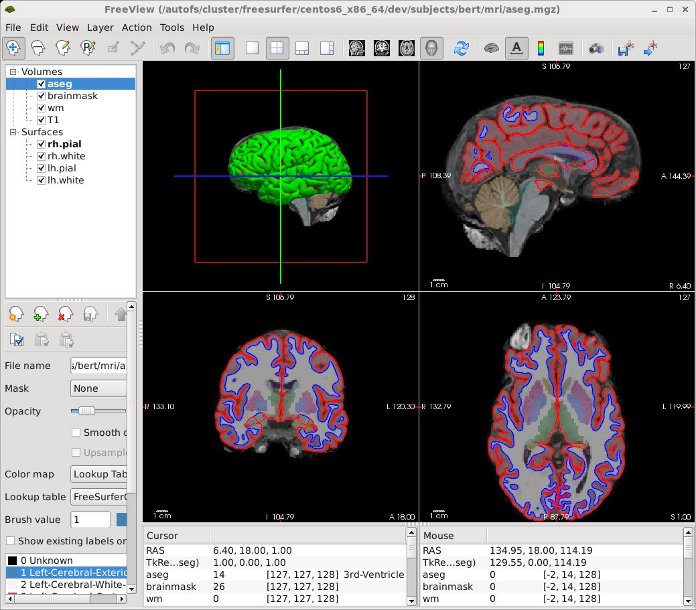
| '''Note: '''Registering for the license key does not enable one to post messages to the Freesurfer mailing list. To post to the list, you must subscribe to the list [[http://mail.nmr.mgh.harvard.edu/mailman/listinfo/freesurfer|by following this link]] | The freeview above command will open the freeview GUI and should look similar to the image below. |
| Line 80: | Line 123: |
| == Test your FreeSurfer Installation == Close any terminal windows you have open and then open a new one. |
{{attachment:freeview_67.jpeg}} |
| Line 83: | Line 125: |
| Copy and paste this command into the terminal window: {{{ freeview -v $SUBJECTS_DIR/bert/mri/norm.mgz \ $SUBJECTS_DIR/bert/mri/aseg.mgz:colormap=lut:opacity=0.2 \ -f $SUBJECTS_DIR/bert/surf/lh.white:edgecolor=yellow \ -f $SUBJECTS_DIR/bert/surf/rh.white:edgecolor=yellow \ -f $SUBJECTS_DIR/bert/surf/lh.pial:annot=aparc:edgecolor=red \ -f $SUBJECTS_DIR/bert/surf/rh.pial:annot=aparc:edgecolor=red }}} |
== Additional Resources == [[https://surfer.nmr.mgh.harvard.edu/fswiki/Tutorials|Try our tutorials]] [[https://surfer.nmr.mgh.harvard.edu/fswiki/CourseDescription|Sign up for a FreeSurfer course]] [[https://surfer.nmr.mgh.harvard.edu/fswiki/FreeSurferSupport|Join the FreeSurfer mailing list, ask a question, or view the archives]] |
FreeSurfer Download and Install
Internal FreeSurfer
People within the MGH/MIT/HMS Martinos Center should use the Internal FreeSurfer Distributions because FreeSurfer is already installed on your system.
Contents
FreeSurfer System Requirements
Summary of Requirements:
Operating System: Linux, Mac OS X, Windows (via VirtualBox)
Processor Speed: 2GHz at least
RAM: 8GB recommended
Graphics card: 3D graphics card with its own graphics memory & accelerated OpenGL drivers
Size of installation package: 8.5GB
Typical size of a processed subject: 370MB
Tutorial dataset size: 18GB
Other requirements: Matlab (only needed to run FS-FAST, the fMRI analysis stream)
Download
Freesurfer 5.3 stable release (ReleaseNotes)
Important Note: It is essential to process all your subjects with the same version of FreeSurfer, on the same OS platform and vendor, and to be completely safe, even the same version of the OS.
Important Note for Mac OS X users: Mac OS X platform requires the installation of XQuartz for freesurfer to work properly. OSX versions 10.6 - 10.9 require XQuartz 2.7.5. OSX versions 10.10 and higher require XQuartz 2.7.6.
OS |
Platform |
Version |
Release Date |
Download |
Size |
Linux |
CentOS 6 x86_64 (64b) |
stable v5.3.0 |
15 May 2013 |
4.2G |
|
Linux |
CentOS 4 x86_64 (64b) |
stable v5.3.0 |
15 May 2013 |
4.0G |
|
Linux |
CentOS 4 (32b) |
stable v5.3.0 |
15 May 2013 |
3.8G |
|
Mac |
Lion OX X 10.7 (64b Intel) |
stable v5.3.0 |
15 May 2013 |
3.5G |
|
Mac |
SnowLeopard OS X 10.6 (32b Intel) |
stable v5.3.0 |
15 May 2013 |
3.2G |
|
Virtualbox |
Xubuntu 12.04 |
stable v5.3.0 |
15 Aug 2013 |
9.0G |
Development Version: Daily builds of FreeSurfer can be downloaded from here.
Previous Releases: Old releases of FreeSurfer can be downloaded from here.
Installation
Linux: Installing FreeSurfer on Linux systems involves simply extracting the contents of the .tar.gz file somewhere on your machine. Installing into the directory /usr/local is recommended. For example:
$> tar -C /usr/local -xzvf freesurfer-Linux-centos6_x86_64-stable-pub-v5.3.0.tar.gz
Mac: Installing FreeSurfer on Mac systems involves simply double clicking the .dmg file and clicking thru the steps. The default installation location is in the /Applications directory. For more detailed instructions, please see the following step-by-step.
Setup & Configuration
To begin using FreeSurfer, you need to open a terminal window and define and environment variable called FREESURFER_HOME which is set to the location FreeSurfer was installed, and then source the setup script. Sourcing FreeSurfer needs to be done every time you open a new terminal window. Or, you can add the two lines below to your default setup file (.bashrc or .cshrc) and FreeSurfer will be sourced automatically everytime you open a new window.
Linux:
## bash $> export FREESURFER_HOME=/usr/local/freesurfer $> source $FREESURFER_HOME/SetUpFreeSurfer.sh ## tcsh $> setenv FREESURFER_HOME /usr/local/freesurfer $> source $FREESURFER_HOME/SetUpFreeSurfer.csh
Mac:
$> export FREESURFER_HOME=/Applications/freesurfer
$> source $FREESURFER_HOME/SetUpFreeSurfer.sh
If done correctly, you should see output similar to this:
Setting up environment for FreeSurfer/FS-FAST (and FSL)
FREESURFER_HOME /usr/local/freesurfer
FSFAST_HOME     /usr/local/freesurfer/fsfast
FSF_OUTPUT_FORMAT nii
SUBJECTS_DIR    /usr/local/freesurfer/subjects
MNI_DIR         /usr/local/freesurfer/mni
License
A license key must be obtained to make the FreeSurfer tools operational. Obtaining a license is free and comes in the form of a license.txt file. Once you obtain the license.txt key file, copy it to your FreeSurfer installation directory. This is also the location defined by the FREESURFER_HOME environment variable.
Follow this link to obtain a license key.
Test your FreeSurfer Installation
FreeSurfer comes with two sample data files (sample-001.mgz and sample-002.mgz) as well as a fully recon-ed subject named bert. These data files can be used to test that your FreeSurfer installation was done properly. To test your installation, please try the following examples:
Example 1: Convert the sample-001.mgz to nifti format.
$> cd $FREESURFER_HOME/subjects
$> mri_convert sample-001.mgz sample-001.nii.gz
...
reading from sample-001.mgz...
TR=7.25, TE=3.22, TI=600.00, flip angle=7.00
i_ras = (-0, -1, -0)
j_ras = (-0, 0, -1)
k_ras = (-1, 0, 0)
writing to sample-001.nii.gz...
Example 2: View the output volumes, surfaces and subcortical segmentation of fully recon-ed subject bert.
$> cd $FREESURFER_HOME/subjects
$> freeview -v \
    bert/mri/T1.mgz \
    bert/mri/wm.mgz \
    bert/mri/brainmask.mgz \
    bert/mri/aseg.mgz:colormap=lut:opacity=0.2 \
    -f \
    bert/surf/lh.white:edgecolor=blue \
    bert/surf/lh.pial:edgecolor=red \
    bert/surf/rh.white:edgecolor=blue \
    bert/surf/rh.pial:edgecolor=red
The freeview above command will open the freeview GUI and should look similar to the image below.
Additional Resources
Sign up for a FreeSurfer course
Join the FreeSurfer mailing list, ask a question, or view the archives