
|
Size: 7892
Comment:
|
Size: 7565
Comment:
|
| Deletions are marked like this. | Additions are marked like this. |
| Line 1: | Line 1: |
| ## page was renamed from QuickInstall = FreeSurfer Download and Install = |
|
| Line 5: | Line 9: |
| Operating System: Linux, Mac OS X, Windows (via !VirtualBox)<<BR>> | Operating System: Linux, macOS<<BR>> |
| Line 9: | Line 13: |
| Size of installation package: 8.5GB<<BR>> Typical size of a processed subject: 370MB<<BR>> Tutorial dataset size: 18GB<<BR>> |
Size of installation package: 10GB<<BR>> Typical size of a processed subject: 300MB<<BR>> |
| Line 15: | Line 18: |
| '''Important:''' It is essential to process all your subjects with the same version of !FreeSurfer, on the same OS platform and vendor, and to be completely safe, even the same version of the OS. | |
| Line 17: | Line 19: |
| '''Freesurfer 5.3 stable release''' <<BR>>Please refer to the ReleaseNotes page for per-release information. |
'''!FreeSurfer 6.0''' ReleaseNotes |
| Line 20: | Line 21: |
| ||'''OS''' || '''Platform''' || '''Version''' || '''Release Date''' || '''Download''' || '''Size''' || || Linux || CentOS 6 x86_64 (64b)|| stable v5.3.0 ||15 May 2013 || [[ftp://surfer.nmr.mgh.harvard.edu/pub/dist/freesurfer/5.3.0/freesurfer-Linux-centos6_x86_64-stable-pub-v5.3.0.tar.gz|freesurfer-Linux-centos6_x86_64-stable-pub-v5.3.0.tar.gz]]||4.2G|| || Linux || CentOS 4 x86_64 (64b)|| stable v5.3.0 ||15 May 2013 || [[ftp://surfer.nmr.mgh.harvard.edu/pub/dist/freesurfer/5.3.0/freesurfer-Linux-centos4_x86_64-stable-pub-v5.3.0.tar.gz|freesurfer-Linux-centos4_x86_64-stable-pub-v5.3.0.tar.gz]]||4.0G|| || Linux || CentOS 4 (32b)|| stable v5.3.0 ||15 May 2013|| [[ftp://surfer.nmr.mgh.harvard.edu/pub/dist/freesurfer/5.3.0/freesurfer-Linux-centos4-stable-pub-v5.3.0.tar.gz|freesurfer-Linux-centos4-stable-pub-v5.3.0.tar.gz]]|| 3.8G || || Mac || Lion OX X 10.7 (64b Intel) || stable v5.3.0 || 15 May 2013 || [[ftp://surfer.nmr.mgh.harvard.edu/pub/dist/freesurfer/5.3.0/freesurfer-Darwin-lion-stable-pub-v5.3.0.dmg|freesurfer-Darwin-lion-stable-pub-v5.3.0.dmg]] || 3.5G || || Mac || !SnowLeopard OS X 10.6 (32b Intel) || stable v5.3.0 || 15 May 2013 || [[ftp://surfer.nmr.mgh.harvard.edu/pub/dist/freesurfer/5.3.0/freesurfer-Darwin-snowleopard-i686-stable-pub-v5.3.0.dmg|freesurfer-Darwin-snowleopard-i686-stable-pub-v5.3.0.dmg]] || 3.2G || || Virtualbox || Xubuntu 12.04 || stable v5.3.0 || 15 Aug 2013 || [[ftp://surfer.nmr.mgh.harvard.edu/pub/dist/freesurfer/5.3.0/freesurfer-Virtualbox-linux-x86-stable-pub-v5.3-full.vdi.gz|freesurfer-Virtualbox-linux-x86-stable-pub-v5.3-full.vdi.gz]] || 9.0G || |
---- '''''Important Note:''' When processing a group of subjects for your study, it is essential to process all your subjects with the same version of !FreeSurfer, on the same OS platform and vendor, and for safety, even the same version of the OS. While we continue to work to ensure that results match across platforms, there are none-the-less system-level libraries that are OS dependent. An exception to this rule is that you may view and edit files across any platform or version, and run some post-processing tools (outside the recon-all stream) if you check with us first (for instance you may run the longitudinal processing with newer versions).'' ---- ||'''OS''' || '''Build Platform''' || '''Version''' || '''Release Date''' || '''Download''' || '''Size''' || || Linux || CentOS 6 x86_64 (64b)|| stable v6.0.0 || 23 Jan 2017 || [[ftp://surfer.nmr.mgh.harvard.edu/pub/dist/freesurfer/6.0.0/freesurfer-Linux-centos6_x86_64-stable-pub-v6.0.0.tar.gz|freesurfer-Linux-centos6_x86_64-stable-pub-v6.0.0.tar.gz]]||4.6G|| || macOS || Lion OS X 10.7 (64b Intel) || stable v6.0.0 || 23 Jan 2017 || [[ftp://surfer.nmr.mgh.harvard.edu/pub/dist/freesurfer/6.0.0/freesurfer-Darwin-OSX-stable-pub-v6.0.0.dmg|freesurfer-Darwin-OSX-stable-pub-v6.0.0.dmg]] || 4.4G || '''Development Version:''' Daily builds of !FreeSurfer can be downloaded from [[ftp://surfer.nmr.mgh.harvard.edu/pub/dist/freesurfer/dev|here]]. '''Previous Releases:''' Old releases of !FreeSurfer can be downloaded from [[ftp://surfer.nmr.mgh.harvard.edu/pub/dist/freesurfer|here]]. '''Freeview:''' For instructions on how to update Freeview - !FreeSurfer's mri viewing application - go to the following page: [[UpdateFreeview|Updating Freeview]] |
| Line 29: | Line 36: |
| Please select the instructions for the type you downloaded: * [[LinuxInstall|Linux Installation]] |
|
| Line 32: | Line 37: |
| * [[MacOsInstall|Mac OS X Installation]] | '''Linux:''' Installing !FreeSurfer on Linux systems involves simply extracting the contents of the .tar.gz file somewhere on your machine. Installing into the directory {{{/usr/local}}} is recommended. For example: |
| Line 34: | Line 39: |
| * [[Installation/FreeSurferVirtualImage|FreeSurfer Virtual Image Installation using VirtualBox]] == Set Up & Configuration == Set the default shell to be permanently switched to tcsh by typing the following in a terminal window and then pressing enter: |
|
| Line 39: | Line 40: |
| chsh -s /bin/tcsh | $> tar -C /usr/local -xzvf freesurfer-Linux-centos6_x86_64-stable-pub-v6.0.0.tar.gz |
| Line 42: | Line 43: |
| Set up your shell's configuration file ('''.tcshrc''') so that !FreeSurfer is sourced every time you open a new terminal window. You can do this by adding the two commands in the box below to any part of the .tcshrc file. Use pico or any other text editor to create a .tcshrc file or to open the .tcshrc file and make this change (i.e. type "pico .tcshrc" on the command-line). | '''Mac:''' [[MacOsInstall|Step-by-step]] instructions, including notes on how to bypass the '''unidentified developer''' issue. The default !FreeSurfer installation location on macOS is in the {{{/Applications/freesurfer}}} directory. |
| Line 44: | Line 45: |
== Setup & Configuration == To begin using !FreeSurfer, you need to open a terminal window and define and environment variable called '''{{{FREESURFER_HOME}}}''' which is set to the location !FreeSurfer was installed, and then source the setup script. Sourcing !FreeSurfer needs to be done every time you open a new terminal window. Or, you can add the two lines below to your default setup file (.bashrc or .cshrc) and !FreeSurfer will be sourced automatically every time you open a new window. '''Linux:''' |
|
| Line 45: | Line 52: |
| setenv FREESURFER_HOME <freesurfer_installation_directory>/freesurfer source $FREESURFER_HOME/SetUpFreeSurfer.csh |
## bash $> export FREESURFER_HOME=/usr/local/freesurfer $> source $FREESURFER_HOME/SetUpFreeSurfer.sh ## tcsh $> setenv FREESURFER_HOME /usr/local/freesurfer $> source $FREESURFER_HOME/SetUpFreeSurfer.csh |
| Line 49: | Line 61: |
| **''Where <freesurfer_installation_directory> is replaced with the location you installed !FreeSurfer (e.g., /Applications/freesurfer).'' | |
| Line 51: | Line 62: |
| To save your changes in pico, hit Ctrl+x to exit and then type 'y' and press enter to save the changes. | '''Mac:''' {{{ $> export FREESURFER_HOME=/Applications/freesurfer $> source $FREESURFER_HOME/SetUpFreeSurfer.sh }}} |
| Line 53: | Line 68: |
| If done correctly, you should see output similar to this: | |
| Line 54: | Line 70: |
| To check that you have done everything correctly, open a new terminal window. You should see output similar to this: | |
| Line 64: | Line 79: |
| If you see the above, it means the !SetUpFreeSurfer.csh script was sourced successfully. | === SUBJECTS_DIR (location of subject data) === |
| Line 66: | Line 81: |
| If any warnings appear, it's usually safe to ignore them, but make sure that they are not stating that a file or directory that should exist cannot be found. If any error messages appear, check that the installation process was successfully completed. | !FreeSurfer requires an environment variable called '''{{{SUBJECTS_DIR}}}'''. This is the directory where subject data is stored. By default, the !FreeSurfer setup script will create the '''{{{SUBJECTS_DIR}}}''' environment variable and set it to the '''{{{FREESURFER_HOME/subjects}}}''' directory - if it is not yet defined. However, in nearly all cases, users will want to set the '''{{{SUBJECTS_DIR}}}''' environment variable themselves to the location of their subjects data. This can be done before or after sourcing the setup script ('''{{{SUBJECTS_DIR}}}''' will NOT be overwritten if it already exists): {{{ ## bash $> export SUBJECTS_DIR=<path to subject data> ## tcsh $> setenv SUBJECTS_DIR <path to subject data> }}} |
| Line 69: | Line 92: |
| You must register to obtain a license key [[https://surfer.nmr.mgh.harvard.edu/registration.html|here]]. The license is free but your !FreeSurfer installation will not work without it. | A license key must be obtained to make the !FreeSurfer tools operational. Obtaining a license is free and comes in the form of a license.txt file. Once you obtain the license.txt key file, copy it to your !FreeSurfer installation directory. This is also the location defined by the '''{{{FREESURFER_HOME}}}''' environment variable. |
| Line 71: | Line 94: |
| Once you register, you will be emailed the license key. This license key needs to be saved in a text file in the location where you installed !FreeSurfer. To do this, open a new terminal window and type each line of command below (hit enter after each line): | [[https://surfer.nmr.mgh.harvard.edu/registration.html|Follow this link to obtain a license key.]] == Test your FreeSurfer Installation == !FreeSurfer comes with two sample data files (sample-001.mgz and sample-002.mgz) as well as a fully recon-ed subject named bert. These data files can be used to test that your !FreeSurfer installation was done properly. To test your installation, please try the following examples: '''Example 1:''' Convert the sample-001.mgz to nifti format. |
| Line 73: | Line 102: |
| cd $FREESURFER_HOME pico .license |
$> cp $FREESURFER_HOME/subjects/sample-001.mgz . $> mri_convert sample-001.mgz sample-001.nii.gz ... reading from sample-001.mgz... TR=7.25, TE=3.22, TI=600.00, flip angle=7.00 i_ras = (-0, -1, -0) j_ras = (-0, 0, -1) k_ras = (-1, 0, 0) writing to sample-001.nii.gz... |
| Line 77: | Line 113: |
| Copy and paste the text between the "CUT HERE" lines in the license email onto the blank screen (which is the text file called .license). To save your changes in pico, hit Ctrl+x to exit and then type 'y' and press enter to save the changes. == Test your FreeSurfer Installation == Close any terminal windows you have open and then open a new one. Copy and paste this command into the terminal window: |
'''Example 2:''' Perform a full recon-all on the nifti file. |
| Line 84: | Line 115: |
| freeview -v $SUBJECTS_DIR/bert/mri/brainmask.mgz \ -v $SUBJECTS_DIR/bert/mri/aseg.mgz:colormap=lut:opacity=0.2 \ -f $SUBJECTS_DIR/bert/surf/lh.white:edgecolor=yellow \ -f $SUBJECTS_DIR/bert/surf/rh.white:edgecolor=yellow \ -f $SUBJECTS_DIR/bert/surf/lh.pial:annot=aparc:edgecolor=red \ -f $SUBJECTS_DIR/bert/surf/rh.pial:annot=aparc:edgecolor=red |
$> export SUBJECTS_DIR=<path to subject directory> $> recon-all -i sample-001.nii.gz -s bert -all (creates a folder called bert in SUBJECTS_DIR) |
| Line 92: | Line 119: |
| The above command will open the freeview GUI and the subject named 'bert' which comes with your !FreeSurfer installation and can be used as an example for what !FreeSurfer output should look like. | '''Example 3:''' Perform a full recon-all on a pre-existing subject folder {{{ $> export SUBJECTS_DIR=<path to subject directory> $> recon-all -s bert -all }}} |
| Line 94: | Line 125: |
| == Sign up for the Mailing List == If you encounter problems with your installation or have any questions about !FreeSurfer, you can post those questions to the listserv after you sign up [[http://mail.nmr.mgh.harvard.edu/mailman/listinfo/freesurfer|here]]. |
'''Example 4:''' View the output volumes, surfaces and subcortical segmentation of the fully recon-ed subject bert. {{{ $> cd $SUBJECTS_DIR $> freeview -v \ bert/mri/T1.mgz \ bert/mri/wm.mgz \ bert/mri/brainmask.mgz \ bert/mri/aseg.mgz:colormap=lut:opacity=0.2 \ -f \ bert/surf/lh.white:edgecolor=blue \ bert/surf/lh.pial:edgecolor=red \ bert/surf/rh.white:edgecolor=blue \ bert/surf/rh.pial:edgecolor=red }}} |
| Line 97: | Line 140: |
| == Get Started! == We highly recommend downloading the [[https://surfer.nmr.mgh.harvard.edu/fswiki/FsTutorial/Data|tutorial dataset]] and learning !FreeSurfer with our guided tutorials. You can find the list of tutorials on our course wiki, under the [[https://surfer.nmr.mgh.harvard.edu/fswiki/FsTutorial#CourseSchedule|Course Schedule section]]. Here, you will also find slides from our most recent lecture series with videos of the lectures [[http://www.youtube.com/channel/UCruQerP8aa-gYttXkAcyveA|here]]. |
The freeview above command will open the freeview GUI and should look similar to the image below. |
| Line 100: | Line 142: |
| Whenever you want to work with !Freesurfer, you must make sure three things have happened: 1. The variable {{{FREESURFER_HOME}}} is set (so your computer knows where !FreeSurfer is installed): {{{setenv FREESURFER_HOME <freesurfer_installation_directory>/freesurfer}}} 1. The !FreeSurfer set up script must be sourced (so !FreeSurfer knows the location of everything it needs): {{{source $FREESURFER_HOME/SetUpFreeSurfer.csh}}} 1. !FreeSurfer has been pointed to a directory of subjects to work on: {{{setenv SUBJECTS_DIR /location/of/subjects}}} |
{{attachment:freeview_67.jpeg}} |
| Line 108: | Line 144: |
| If you followed all the Quick Install instructions on this page, you have set it up so all 3 of these things happen automatically when you open a terminal window. However, when working on the tutorial data or on your own data, keep in mind that you may need to redo #3 in order to specify a different set of subjects !FreeSurfer should work with. You can change this in the {{{$FREESURFER_HOME/SetUpFreeSurfer.csh}}} file or you can run the command listed in step #3 every time you open a new terminal window. | == Additional Resources == |
| Line 110: | Line 146: |
| If you have data you would like to process with !FreeSurfer, you can do so using the command {{{recon-all}}}. | [[https://surfer.nmr.mgh.harvard.edu/fswiki/Tutorials|Try our tutorials]] [[https://surfer.nmr.mgh.harvard.edu/fswiki/CourseDescription|Sign up for a FreeSurfer course]] [[https://surfer.nmr.mgh.harvard.edu/fswiki/FreeSurferSupport|Join the FreeSurfer mailing list, ask a question, or view the archives]] {{attachment:openneuro_badge.svg}} A free and open platform that can be used to run !FreeSurfer. For more information, [[https://surfer.nmr.mgh.harvard.edu/fswiki/OpenNeuro|click here]]. |
FreeSurfer Download and Install
Contents
FreeSurfer System Requirements
Summary of Requirements:
Operating System: Linux, macOS
Processor Speed: 2GHz at least
RAM: 8GB recommended
Graphics card: 3D graphics card with its own graphics memory & accelerated OpenGL drivers
Size of installation package: 10GB
Typical size of a processed subject: 300MB
Other requirements: Matlab (only needed to run FS-FAST, the fMRI analysis stream)
Download
FreeSurfer 6.0 ReleaseNotes
Important Note: When processing a group of subjects for your study, it is essential to process all your subjects with the same version of FreeSurfer, on the same OS platform and vendor, and for safety, even the same version of the OS. While we continue to work to ensure that results match across platforms, there are none-the-less system-level libraries that are OS dependent. An exception to this rule is that you may view and edit files across any platform or version, and run some post-processing tools (outside the recon-all stream) if you check with us first (for instance you may run the longitudinal processing with newer versions).
OS |
Build Platform |
Version |
Release Date |
Download |
Size |
Linux |
CentOS 6 x86_64 (64b) |
stable v6.0.0 |
23 Jan 2017 |
4.6G |
|
macOS |
Lion OS X 10.7 (64b Intel) |
stable v6.0.0 |
23 Jan 2017 |
4.4G |
Development Version: Daily builds of FreeSurfer can be downloaded from here.
Previous Releases: Old releases of FreeSurfer can be downloaded from here.
Freeview: For instructions on how to update Freeview - FreeSurfer's mri viewing application - go to the following page: Updating Freeview
Installation
Linux: Installing FreeSurfer on Linux systems involves simply extracting the contents of the .tar.gz file somewhere on your machine. Installing into the directory /usr/local is recommended. For example:
$> tar -C /usr/local -xzvf freesurfer-Linux-centos6_x86_64-stable-pub-v6.0.0.tar.gz
Mac: Step-by-step instructions, including notes on how to bypass the unidentified developer issue. The default FreeSurfer installation location on macOS is in the /Applications/freesurfer directory.
Setup & Configuration
To begin using FreeSurfer, you need to open a terminal window and define and environment variable called FREESURFER_HOME which is set to the location FreeSurfer was installed, and then source the setup script. Sourcing FreeSurfer needs to be done every time you open a new terminal window. Or, you can add the two lines below to your default setup file (.bashrc or .cshrc) and FreeSurfer will be sourced automatically every time you open a new window.
Linux:
## bash $> export FREESURFER_HOME=/usr/local/freesurfer $> source $FREESURFER_HOME/SetUpFreeSurfer.sh ## tcsh $> setenv FREESURFER_HOME /usr/local/freesurfer $> source $FREESURFER_HOME/SetUpFreeSurfer.csh
Mac:
$> export FREESURFER_HOME=/Applications/freesurfer
$> source $FREESURFER_HOME/SetUpFreeSurfer.sh
If done correctly, you should see output similar to this:
Setting up environment for FreeSurfer/FS-FAST (and FSL)
FREESURFER_HOME /usr/local/freesurfer
FSFAST_HOME     /usr/local/freesurfer/fsfast
FSF_OUTPUT_FORMAT nii
SUBJECTS_DIR    /usr/local/freesurfer/subjects
MNI_DIR         /usr/local/freesurfer/mni
SUBJECTS_DIR (location of subject data)
FreeSurfer requires an environment variable called SUBJECTS_DIR. This is the directory where subject data is stored. By default, the FreeSurfer setup script will create the SUBJECTS_DIR environment variable and set it to the FREESURFER_HOME/subjects directory - if it is not yet defined. However, in nearly all cases, users will want to set the SUBJECTS_DIR environment variable themselves to the location of their subjects data. This can be done before or after sourcing the setup script (SUBJECTS_DIR will NOT be overwritten if it already exists):
## bash
$> export SUBJECTS_DIR=<path to subject data>

## tcsh
$> setenv SUBJECTS_DIR <path to subject data>
License
A license key must be obtained to make the FreeSurfer tools operational. Obtaining a license is free and comes in the form of a license.txt file. Once you obtain the license.txt key file, copy it to your FreeSurfer installation directory. This is also the location defined by the FREESURFER_HOME environment variable.
Follow this link to obtain a license key.
Test your FreeSurfer Installation
FreeSurfer comes with two sample data files (sample-001.mgz and sample-002.mgz) as well as a fully recon-ed subject named bert. These data files can be used to test that your FreeSurfer installation was done properly. To test your installation, please try the following examples:
Example 1: Convert the sample-001.mgz to nifti format.
$> cp $FREESURFER_HOME/subjects/sample-001.mgz .
$> mri_convert sample-001.mgz sample-001.nii.gz
...
reading from sample-001.mgz...
TR=7.25, TE=3.22, TI=600.00, flip angle=7.00
i_ras = (-0, -1, -0)
j_ras = (-0, 0, -1)
k_ras = (-1, 0, 0)
writing to sample-001.nii.gz...
Example 2: Perform a full recon-all on the nifti file.
$> export SUBJECTS_DIR=<path to subject directory>
$> recon-all -i sample-001.nii.gz -s bert -all (creates a folder called bert in SUBJECTS_DIR)
Example 3: Perform a full recon-all on a pre-existing subject folder
$> export SUBJECTS_DIR=<path to subject directory>
$> recon-all -s bert -all
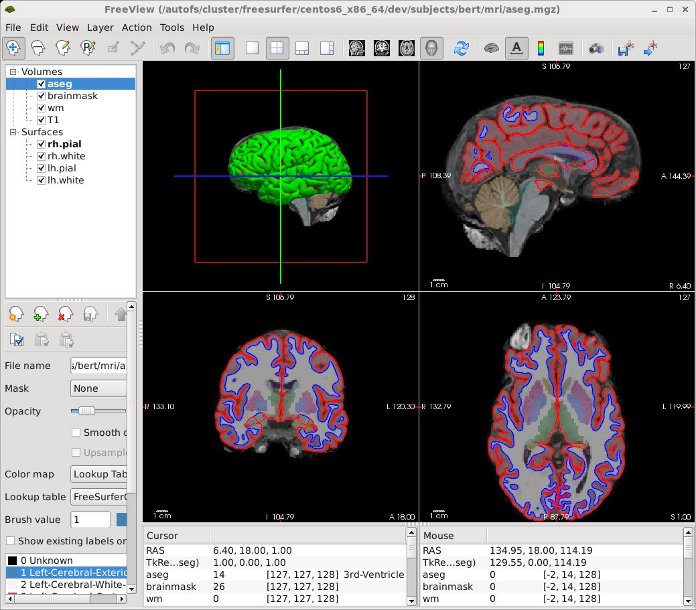
Example 4: View the output volumes, surfaces and subcortical segmentation of the fully recon-ed subject bert.
$> cd $SUBJECTS_DIR
$> freeview -v \
    bert/mri/T1.mgz \
    bert/mri/wm.mgz \
    bert/mri/brainmask.mgz \
    bert/mri/aseg.mgz:colormap=lut:opacity=0.2 \
    -f \
    bert/surf/lh.white:edgecolor=blue \
    bert/surf/lh.pial:edgecolor=red \
    bert/surf/rh.white:edgecolor=blue \
    bert/surf/rh.pial:edgecolor=red
The freeview above command will open the freeview GUI and should look similar to the image below.
Additional Resources
Sign up for a FreeSurfer course
Join the FreeSurfer mailing list, ask a question, or view the archives
 A free and open platform that can be used to run FreeSurfer. For more information, click here.